Internet banking


Internet banking
First Internet Banking Login
-
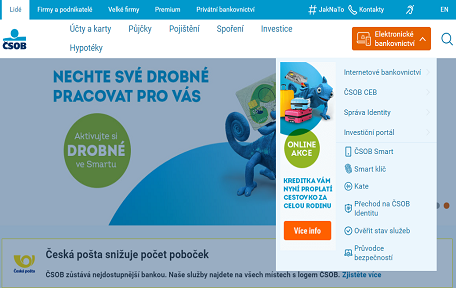
Go to www.csob.cz, click on the orange "Login" button in the top right corner and select
"Internet Banking".
-
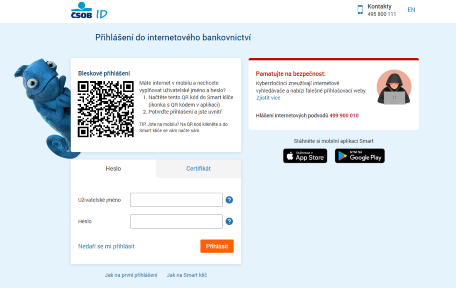
In "Username" enter your identification number, which you will find on your Agreement on
ČSOB Identity. It is in your email or a printout handed over at our branch.
-
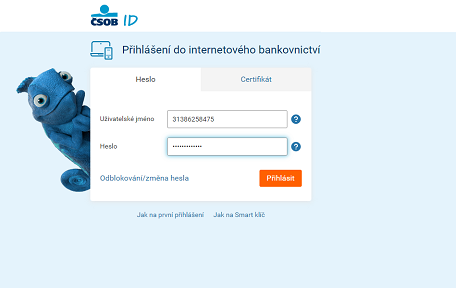
We sent you the password via SMS. Copy it and click Log in.
-
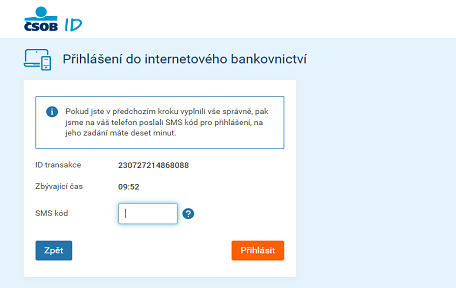
Enter the verification code that we will send as an SMS to your phone.
-
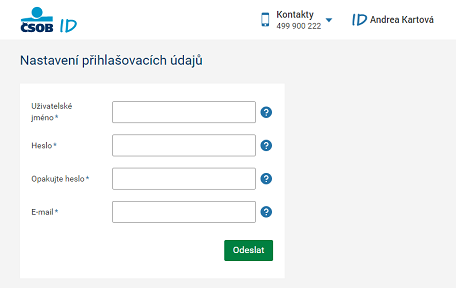
Now create new login details – username and password, i.e. your ČSOB Identity. Also enter your
email address.
-
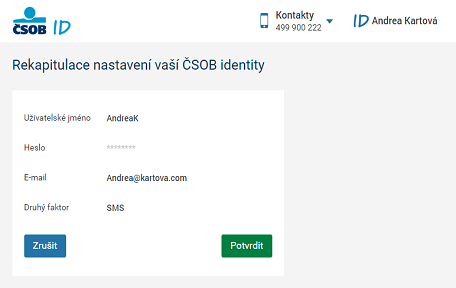
On the next screen check all the details.
-
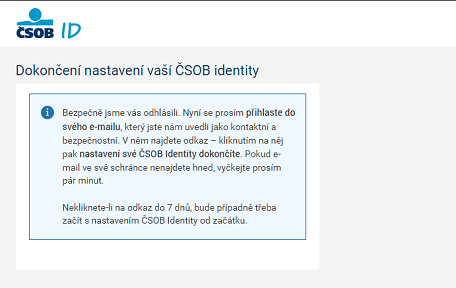
Open your email inbox, where we will send you a verification link. Click on it.
-
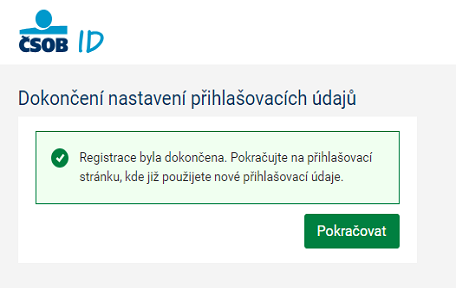
All done. Log in to Internet Banking with your username and password.
How to Log In
-
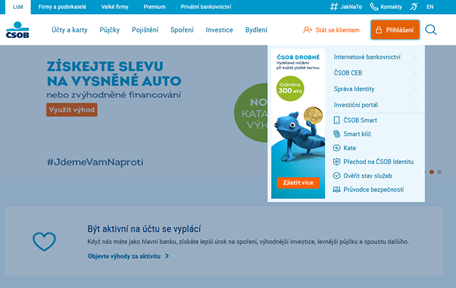
Go to www.csob.cz, click on the orange "Login" button in the top right corner and select
"Internet Banking".
-
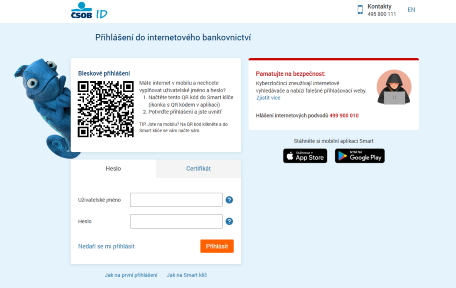
Log in to Internet Banking with your username and password.
-
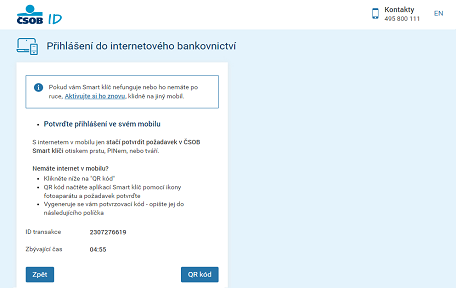
Confirm login using Smart Key or SMS Key.
-
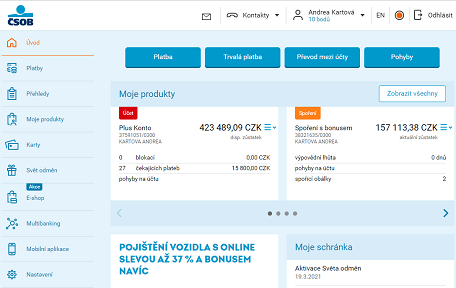
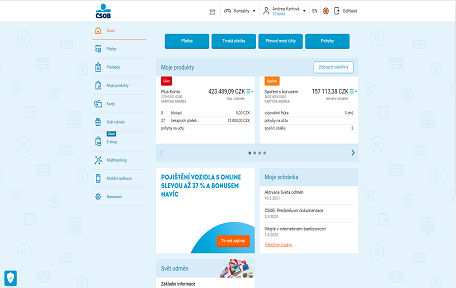
After logging in, you will see the homepage with all your products clearly arranged. There is a
navigation menu on the left.
-
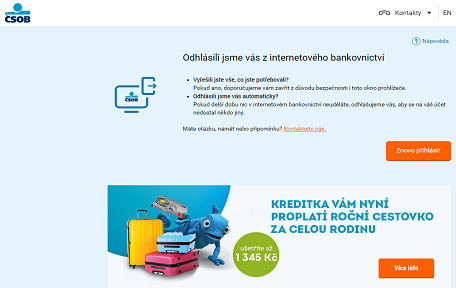
Once you are finished, be sure to sign out using the button in the upper right corner. If you
forget, we will log you out automatically after a few minutes.
Login Using QR Code
TIP: There is no need to type your username and password manually. All you need is an active Smart Key.
-
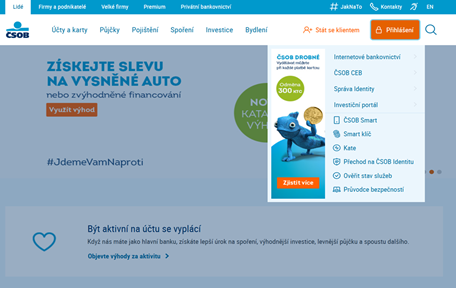
Go to www.csob.cz, click on the orange "Login" button in the top right corner and select
"Internet Banking".
-
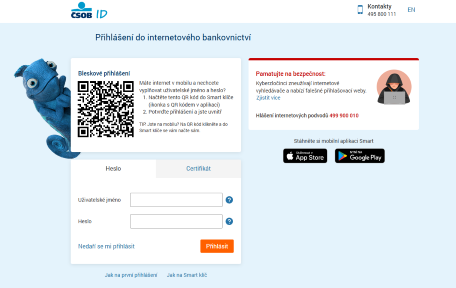
Do not enter anything on the login page.
-
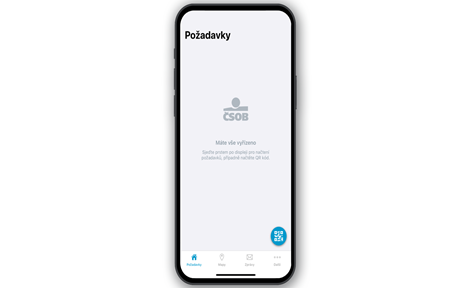
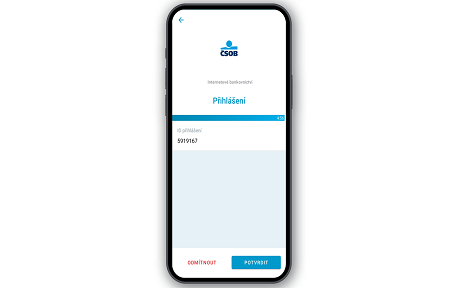
Open ČSOB Smart Key and click on the QR code icon.
-
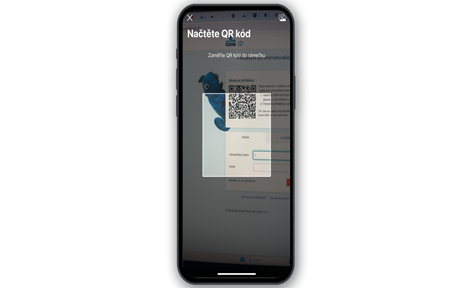
Point the camera to the QR code and wait for it to load.
-
Click on "Confirm" to confirm your login, and authenticate it using biometrics or your PIN.
-
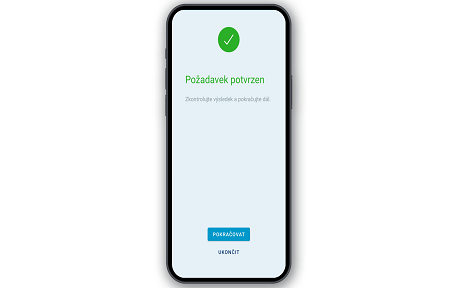
The phone will display a confirmation screen.
-
Done – you are logged in.
I don't remember my user name
-
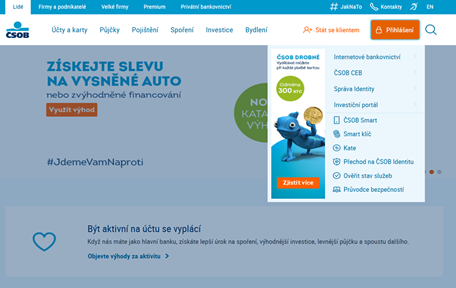
Go to www.csob.cz, click on the orange "Login" button in the top right corner
and select "Internet Banking".
-
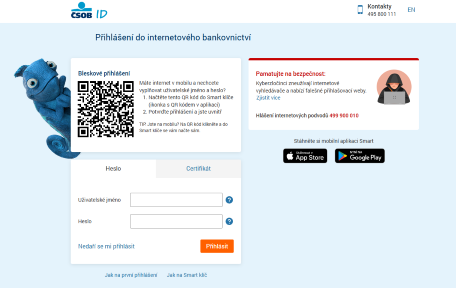
On the login page, click on "Having trouble logging in?".
-
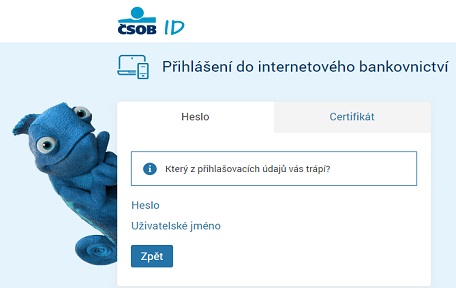
Select "Username".
-
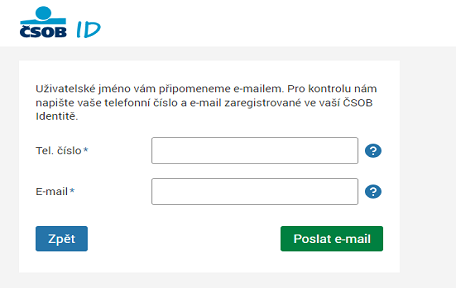
Fill in your phone number and email address. (registered to your CSOB
Identity).
-
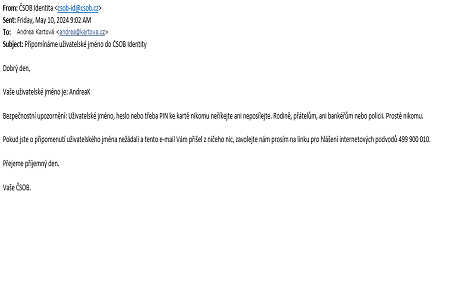
We will send your username to your e-mail immediately.
I don't remember my password
-
Go to www.csob.cz, click on the orange "Login" button in the top right corner and select
"Internet Banking".
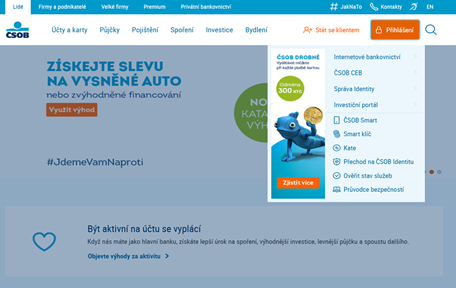
-
On the login page, click on "Having trouble logging in?".
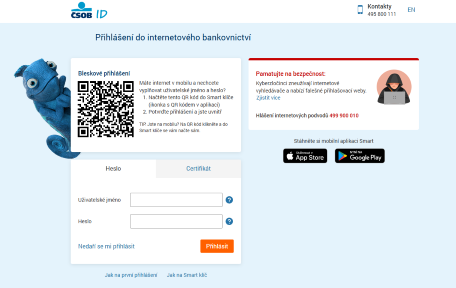
-
Select "Password".
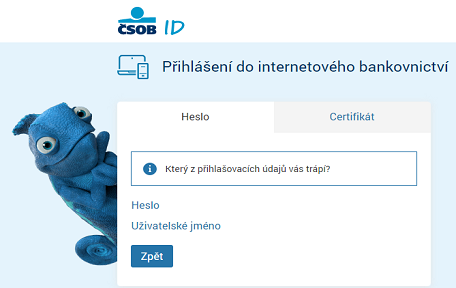
-
Enter your username and click on the green "Continue" button.
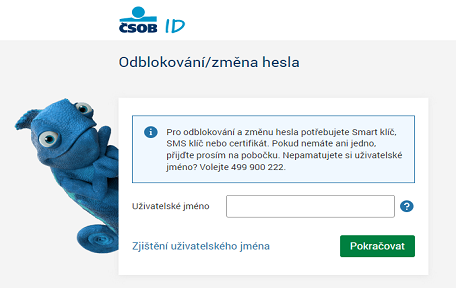
-
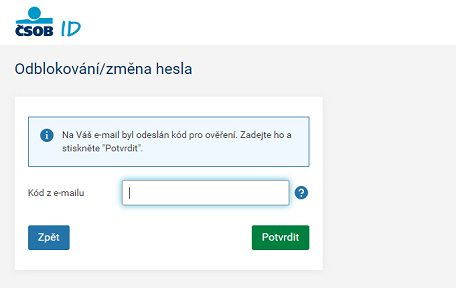
Enter the verification code sent by email and confirm using the green button.
-
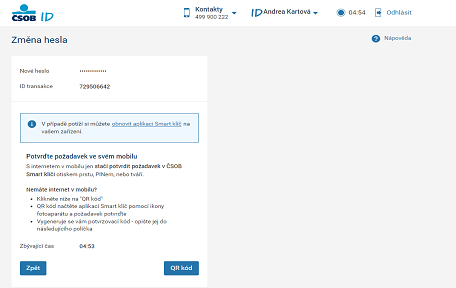
Set your new password.
-
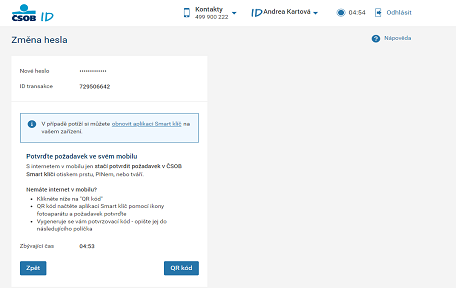
Confirm the request with Smart Key or SMS code.
-
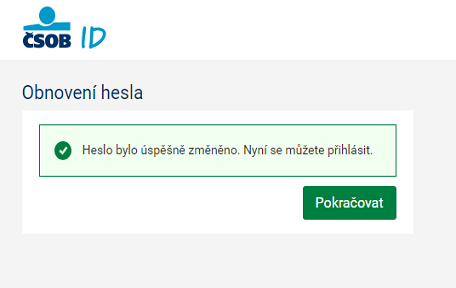
Done, you’ve set up a new password.
Manage Login Details
-
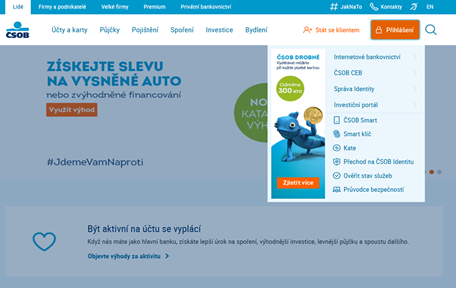
Go to www.csob.cz, click on the orange "Login" button in the top right corner and select
"Internet Banking".
-
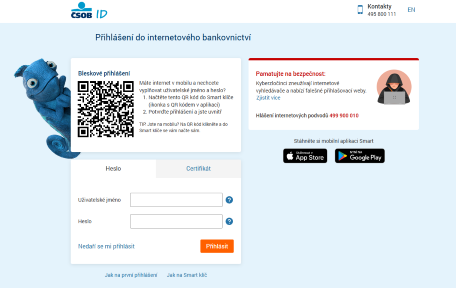
Log in with your username and password.
-
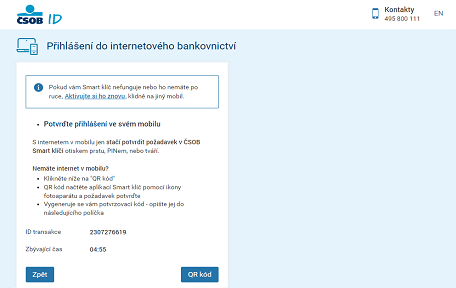
Confirm login using Smart Key or SMS Key.
-
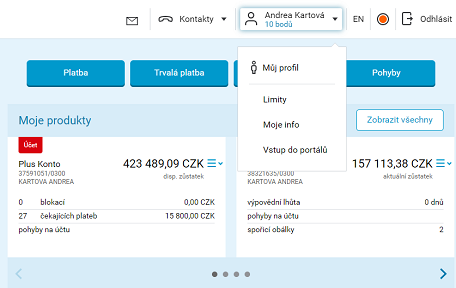
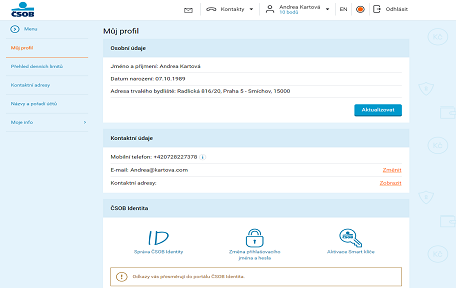
On the main page, click on your name in the header and select "My profile".
-
Under ČSOB Identity you can change and manage your ČSOB Identity, login details or activate
your ČSOB Smart Key.
Text instructions
What is the preferred way to reach the operator?
When you need advice or to quickly resolve an internet fraud, request a call via internet banking. It's quicker than a traditional call to a helpline, where you wait in a queue for an operator who still has to verify your identity.
- In Online Banking, select the "Contacts" tab and then select "All Contacts".
- For the selected line, click on "Call me", check the phone number and confirm.
Where can I find statements or receipts?
You can find the statements in the left-hand bar under "Reports" and then select "Statements". You will then find the posting confirmation under "Movements" in your account. Statements are also available in our mobile application ČSOB Smar
My investment/pension/mortgage portal isn't opening. Instead, it shows me a pop-up message.
In order for us to redirect you, you must have pop-ups enabled in your web browser.
Microsoft Edge:
- Click on the top right of the three horizontal dots.
- Select "Settings".
- Select "Cookie and Site Permissions" from the left menu.
- In the list, click "All permissions".
- Select "Automatically open windows and redirects".
- In the "Enable" section, click "Add".
- In the text box, type: [*.]csob.cz
Google Chrome:
- Click on the three vertical dots in the top right corner.
- Select "Settings".
- Click on "Privacy & Security" in the left menu.
- Select "Site Settings".
- Click on "Pop-ups and redirects".
- In the "Allow pop-ups and redirects" section, click "Add".
- In the text box, type: [*.]csob.cz
How do I sign a service order in Internet banking?
- After logging into Online banking, select the "envelope" icon on the top bar.
- Open the request in your mailbox and click on the word "link" in the text.
- Select "Finish" and "Sign".
- Read the pre-contract terms and conditions, and if everything fits, agree to them.
- Review the contract documents, click agree and confirm with Smart Key, SMS Key or certificate.
FAQ
What are the limits for payments in online banking?
The payment limit is daily and can be found in Online Banking:
- Log in to Online Banking.
- Click on "Settings" in the left-hand bar and then "Daily Limits Overview".
- Here you will see your current limit and can adjust it as needed.
Important information on limits
- If you make a payment in Internet Banking, your limit will also be reduced for payments in the ČSOB Smart app.
Exceptions to the limits
Some transactions do not count towards the daily limit, for example:
- Transfer between own accounts
- Credit card payment
- Transfer from a savings account to a current account
I can't log in to Internet Banking. I am not receiving the SMS code/request for the Smart Key.
Make sure you are entering the correct login details.
- Username – For example, you can find it in the Smart app. Once logged in, click on your name in the top left. This will open your profile where you will find your "CSOB ID/User Name" among other things. You can also ask your virtual assistant Kate for your username. Or watch the "I don't remember my username" video tutorial above to find it.
- Password – It is 9 - 30 characters long. It must contain uppercase, lowercase, numbers or special characters. If you forget it, you have no choice but to retrieve it using the "I don't remember my password" video tutorial under the "Internet Banking" tab.
I get an error, a white page or a spinning wheel, etc.
- Clear browser cache and cookies.
- If that doesn't work, try logging in on a different browser or computer.
- Check your antivirus program, it may be blocking your connection.
- Make sure you don't have an outdated operating system and internet browser on your computer.
- Restart the computer you are logging in from. Turn your internet modem/router off and on.