
ČSOB Smart Key


ČSOB Smart Key

Smart key activation with selfie
Step 1: Entering login details for CSOB Identity
TIP: Need a mobile phone, Czech ID and login details for CSOB Identity. Use this even if you have Smart Key login set up but don't have a mobile phone with a working app. The Smart Key can also be activated in this way using other types of ID documents, such as: a Czech passport, a Slovak ID card or passport, a Czech residence permit in the form of a plastic card or a book, and only the ID document that we have registered will be displayed for activation.
-
Open the downloaded app and select "Activate".
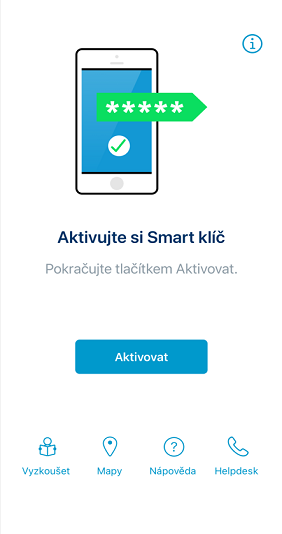
-
Continue to "In the phone".
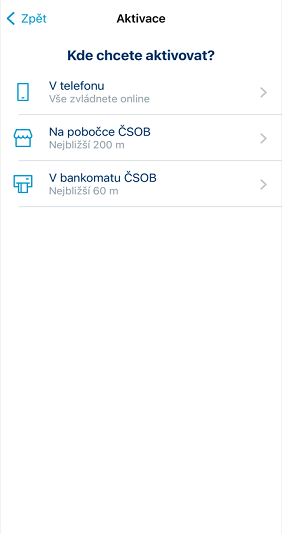
-
Go to "With a selfie".
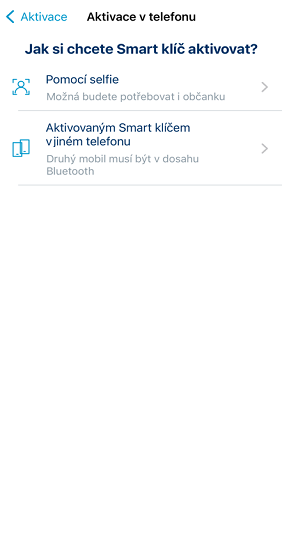
-
Read what's coming up and go to "Continue".
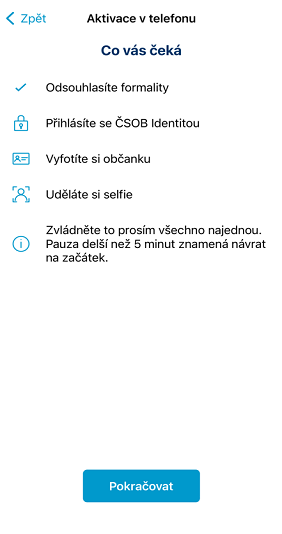
-
Read and agree to the terms and conditions.
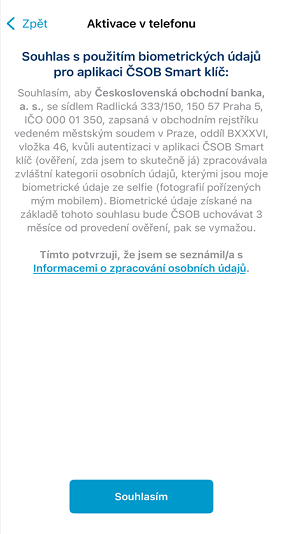
-
Enter your username in CSOB Identity.
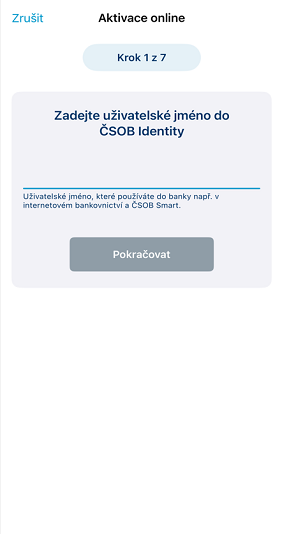
-
Enter the month and year of birth..
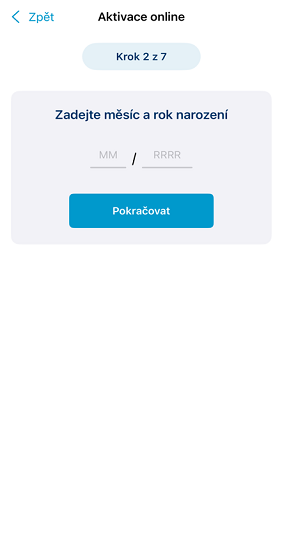
-
Next, enter your CSOB Identity password.
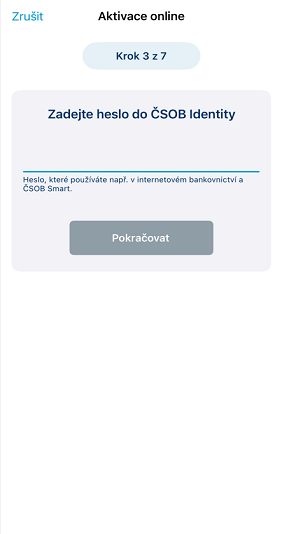
Smart key activation with selfie
Step 2: ID scanning and selfie
TIP: You can activate the Smart Key even if you have one of the following documents on file with us: a Czech ID or passport, a Slovak ID or passport, or a Czech residence permit in the form of a plastic card or book.
-
Read the instructions on how to take a photo of the ID document.
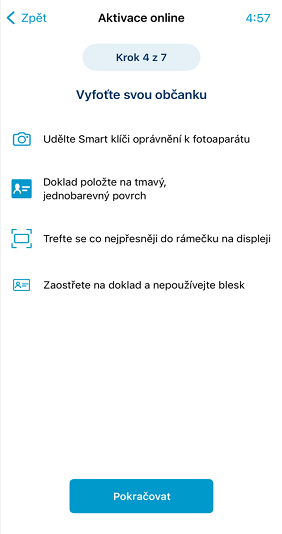
-
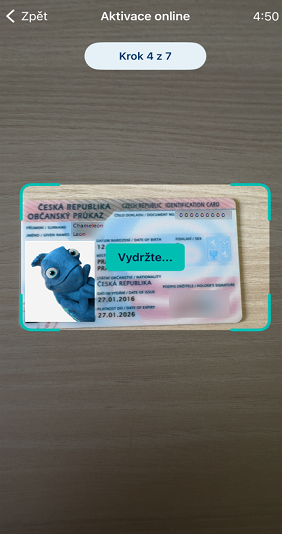
First, take a picture of the front side.
-
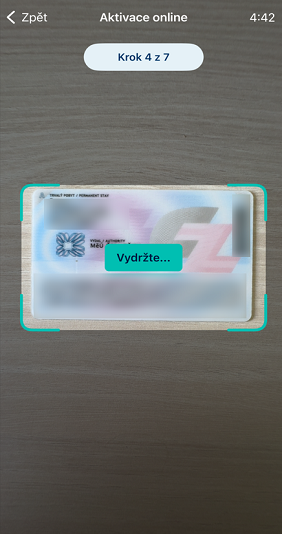
If the app prompts you, take a photo of the back as well.
-
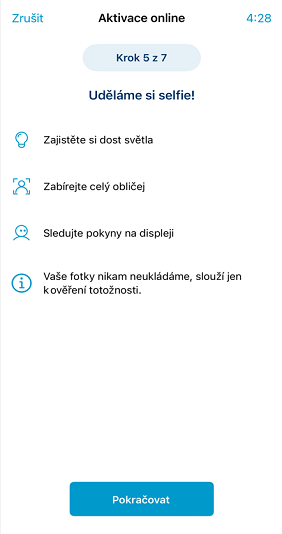
Read the instructions on how to take a selfie.
-
Focus your head on the green circle.
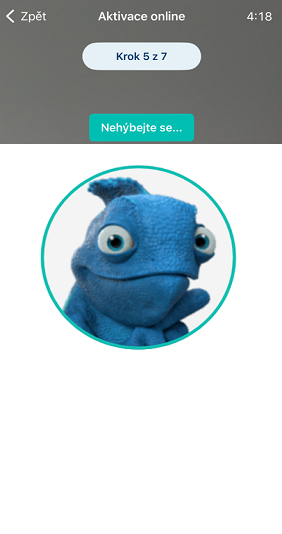
-
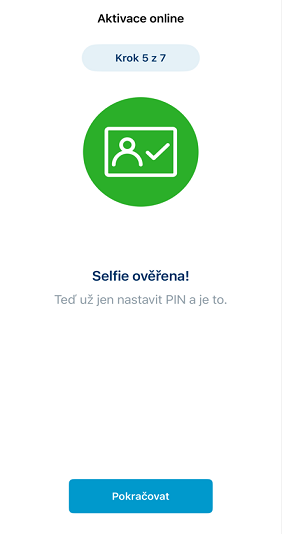
If everything matches, set your PIN, turn on biometrics, and the Smart Key is ready for ready to
use.
Smart key activation via Bluetooth
TIP: Use it when you're switching to a new phone and you still have your old one with the Smart Key.
-
Open the downloaded app and select "Activate".
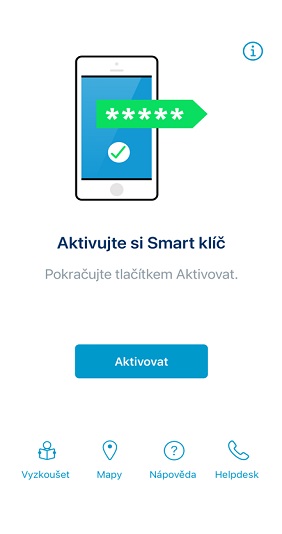
-
Continue to "In the phone".
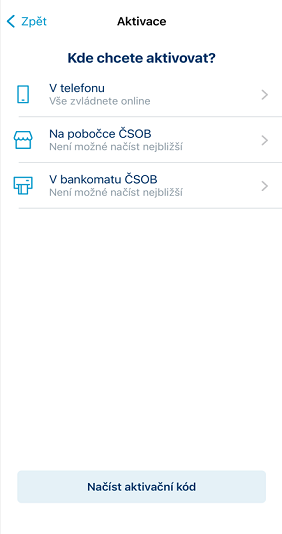
-
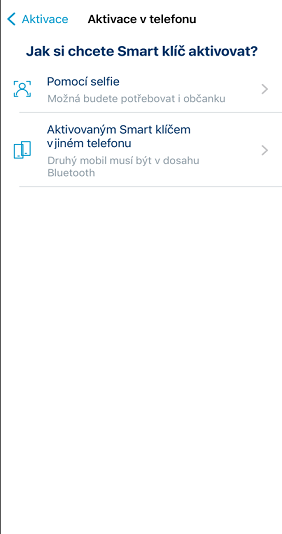
Select "With an activated Smart Key on another phone".
-
Read what's coming up. It is important to have Bluetooth enabled on both phones.

-
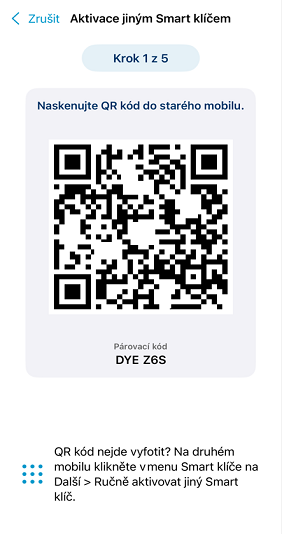
A pairing QR code will appear on the new phone.
You'll find the pairing code written below it as well, in case the QR code can't be read.
-
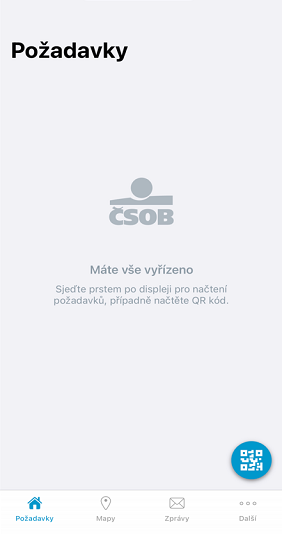
On the old phone, open the Smart key and click on the QR code icon (bottom right).
-
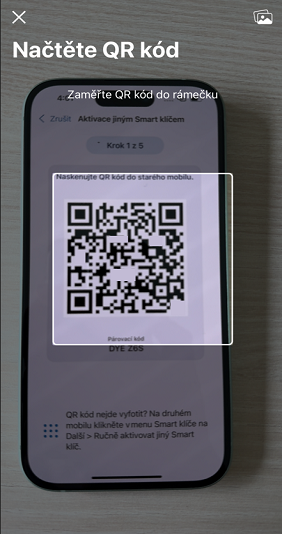
Scan the QR code and click "Continue".
-
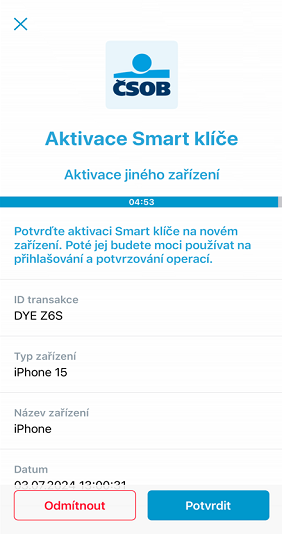
Check the request and confirm it.
-
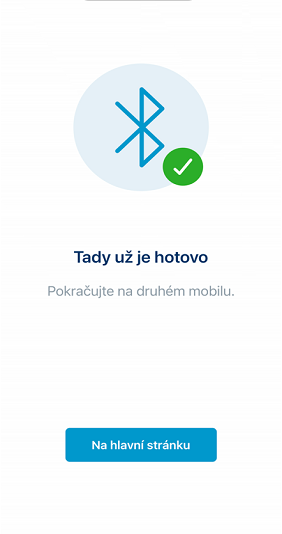
Go back to your new phone.
-
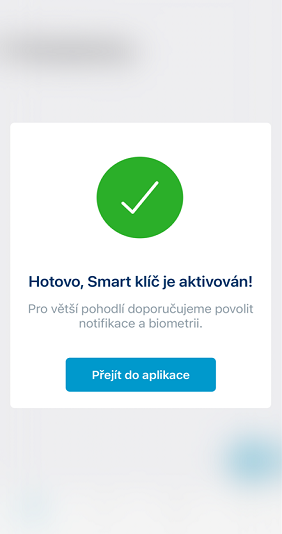
Set your PIN, turn on biometrics, and the Smart Key is ready for ready to use.
App Deactivation
TIP: Always keep Smart Key active on at least one phone. For example, if you are switching to a
new phone, activate Smart Key on your new phone first, then delete the app from your old phone.
If you no longer have your original Smart Key phone, follow the instructions for “Smart key activation
with selfie” or “Smart Key Activation Using ATM“.
-
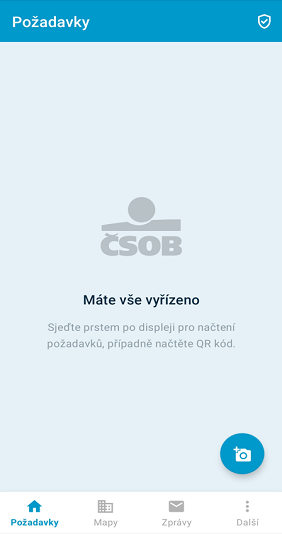
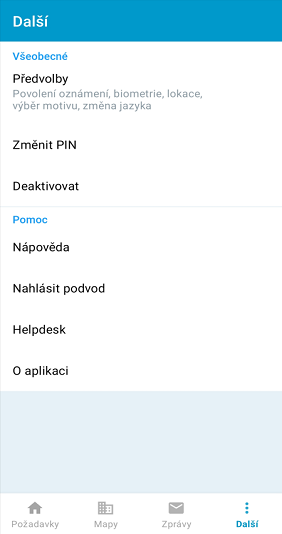
Launch your Smart key.
-
In the bottom menu, click on "More" and "Deactivate".
-
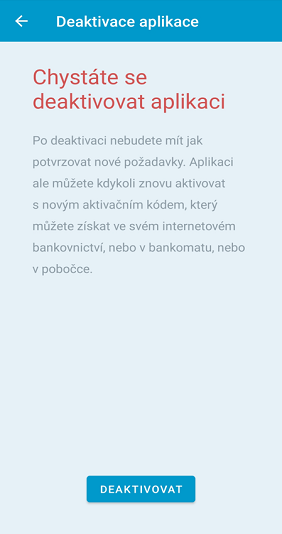
Confirm using the "Deactivate" button.
-
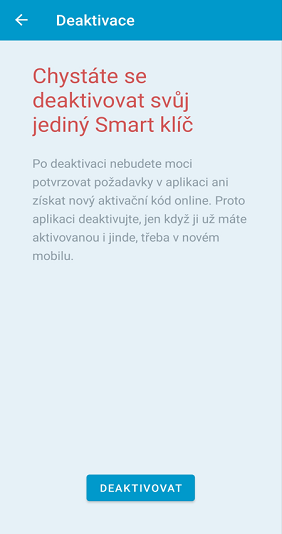
Confirm your decision by tapping "Deactivate".
-
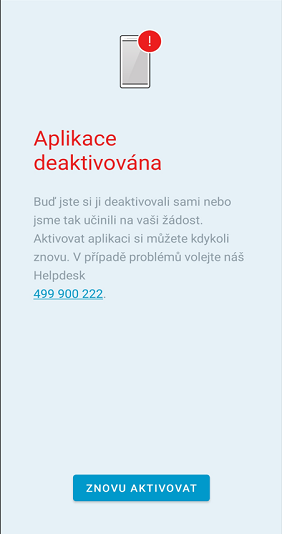
You’re done; your app has been deactivated.
Login and Confirm Request Online
TIP: Use this if you have Internet access.
-
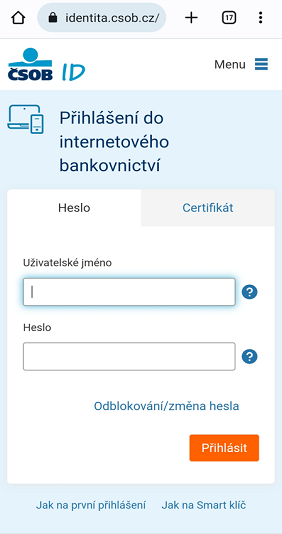
Log in to Internet Banking with your username and password.
-
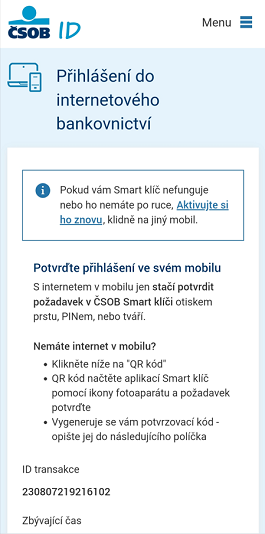
Open ČSOB Smart key on your phone.
-
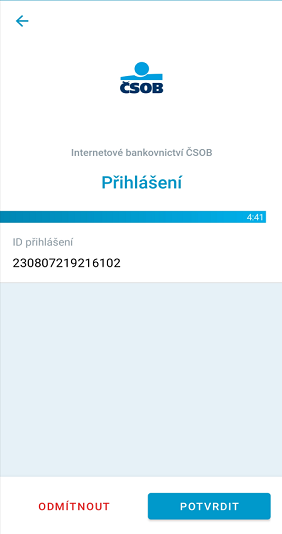
In Smart Key, check the request details, and if everything is OK, select "CONFIRM".
-
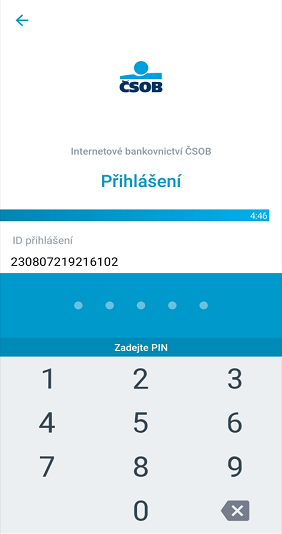
Confirm the request using biometrics or your PIN.
-
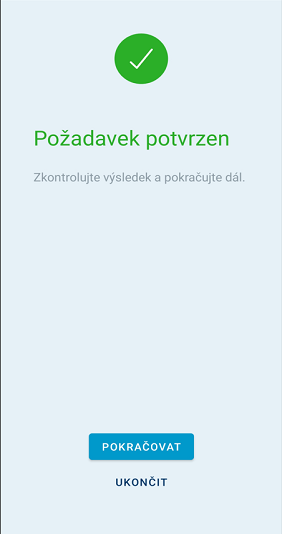
Press "Continue".
-
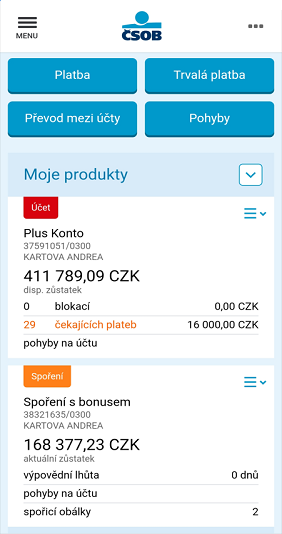
Done, welcome to Internet Banking.
Biometrics Activation
-
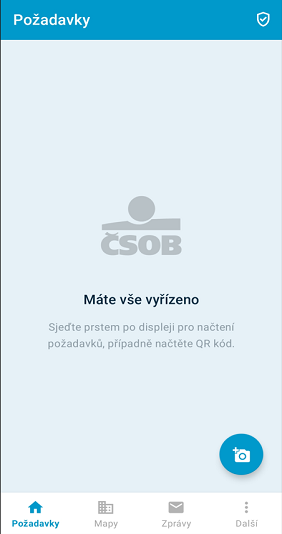
Open Smart Key and click on "Next" in the bottom menu.
-
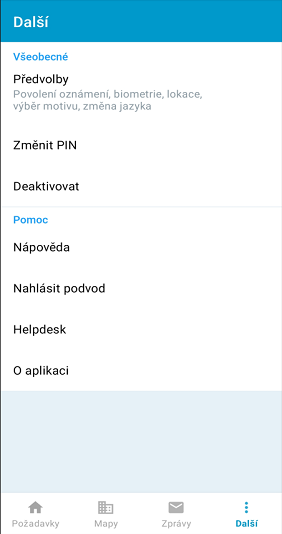
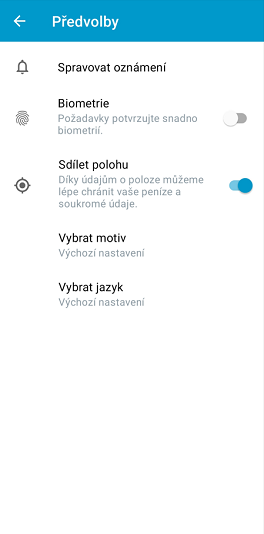
Select "Preferences".
-
Activate "Biometrics" using the slide button.
-
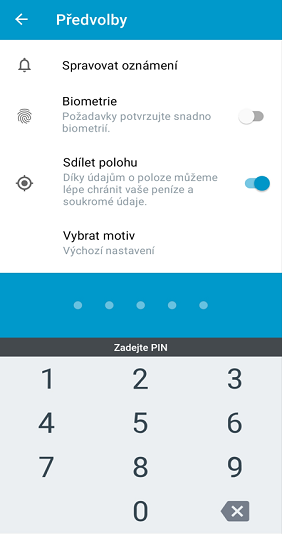
Enter your Smart Key PIN.
-
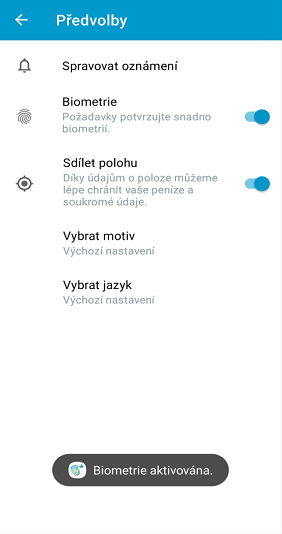
From now on, you will confirm requests using biometrics.
Biometrics Deactivation
-
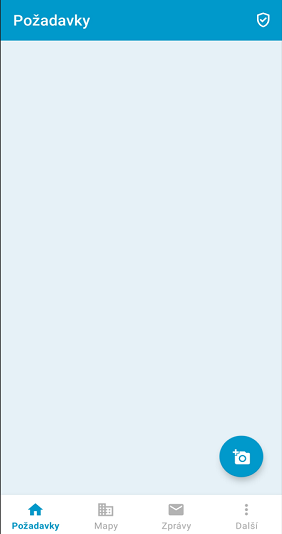
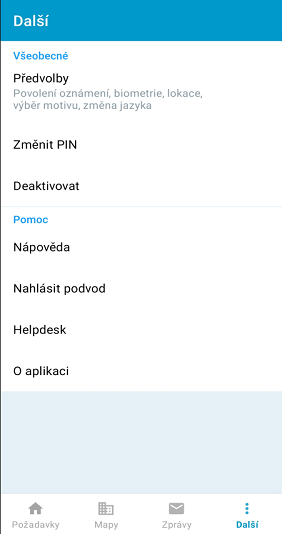
Open Smart Key and click on "Next" in the bottom menu.
-
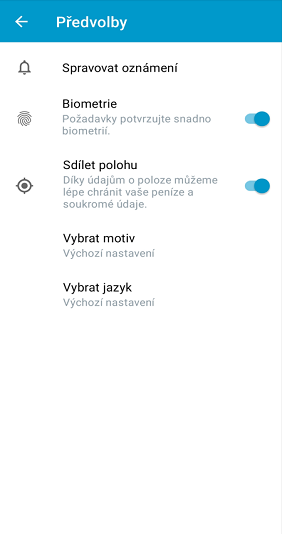
Then select "Preferences".
-
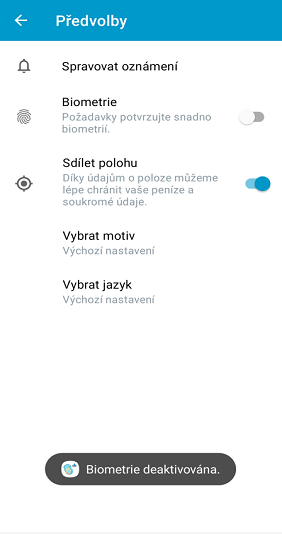
Deactivate "Biometrics" using the slide button.
-
All done. From now on, you will confirm requests with your PIN.
Smart Key Activation Using ATM
-
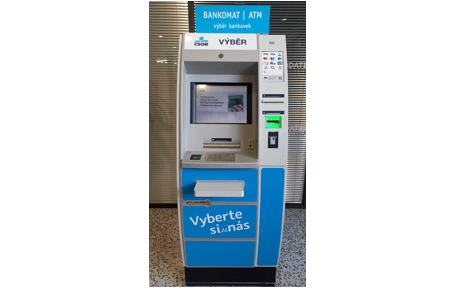
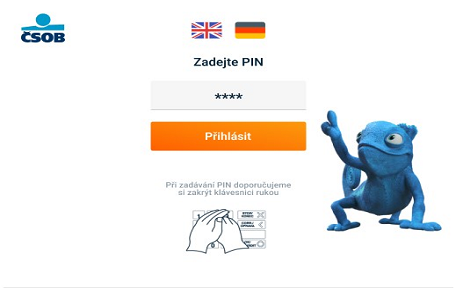
Insert your card into a ČSOB ATM and enter your PIN. This cannot be done in a contactless way.
-
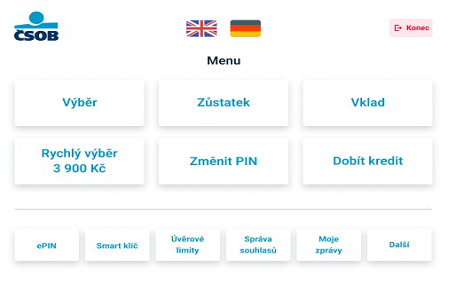
From the home screen, select "Smart Key".
-
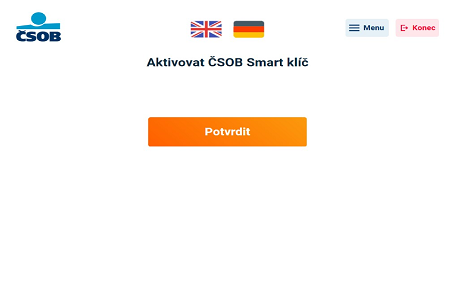
Confirm the activation of the ČSOB Smart Key.
-
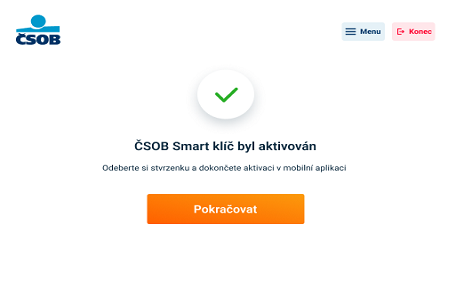
Click on "Continue" and wait for your receipt.
-
On the receipt you will find 2 QR codes. Using your phone camera, scan the bottom QR code to
download the app first.
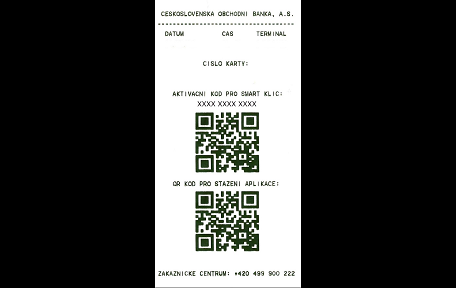
-
The link in the QR code will redirect you to the app store. Download ČSOB Smart Key and open the
app.
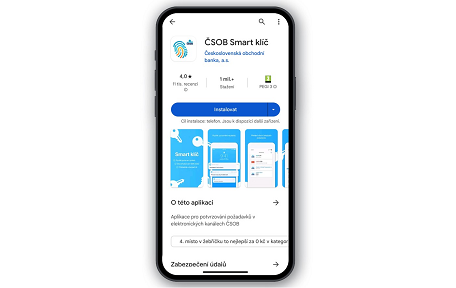
-
Answer “Where do you want to activate?” with "ČSOB ATM".
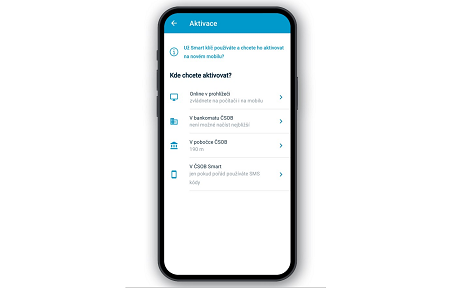
-
Click on "Get Activation Code".
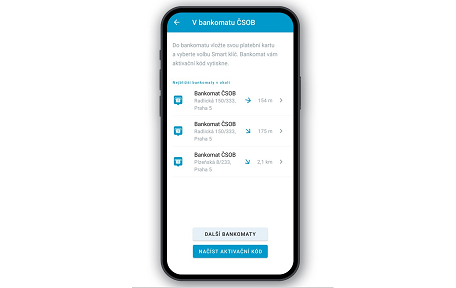
-
Using your phone camera scan the top QR code from the ticket. Alternatively, copy the code
manually.
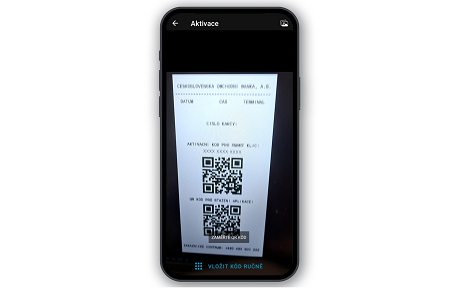
-
Choose a 5-digit PIN and repeat it. The app will then offer you biometric confirmation. And
you’re done. From now on, you will confirm your requests with your Smart Key.
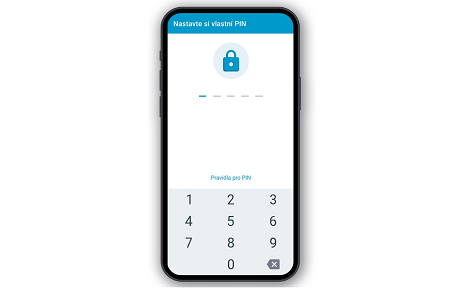
Activation of the Smart key for children up to 15 years of age via the ČSOB Identity portal
TIP: You need to use your child's login details to log in.
-
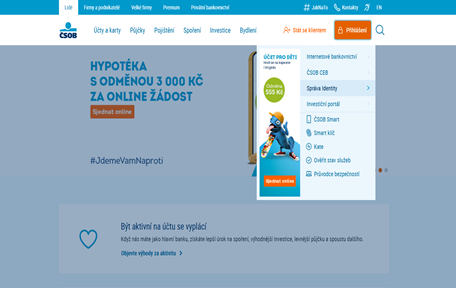
Download the Smart key app from the official store (Google Play, App Store, Huawei AppGallery) to your
mobile phone and log in to the CSOB Identity portal - in the internet browser (on your computer or
mobile phone) go to www.csob.cz, click on "Login" and "ČSOB Identita" on the top right.
-
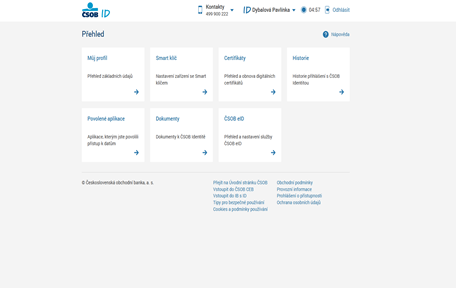
After logging into the CSOB identity portal, click on the Smart key tile.
-
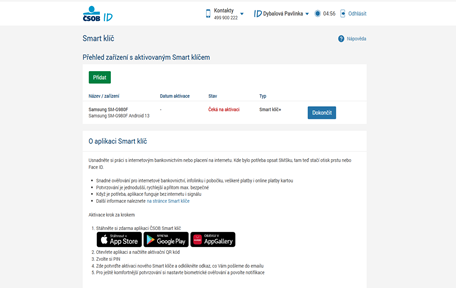
Select the green "Add" button.

-
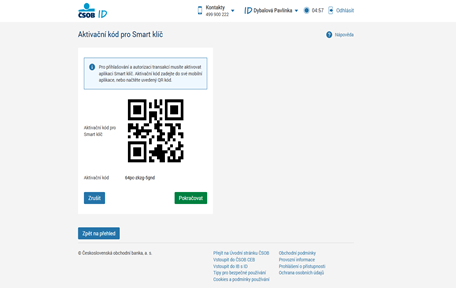
You will see an activation QR code that you scan on your child's mobile phone via the "Scan activation
code" option. Choose a 5-digit PIN and repeat it. Select "Continue" in the browser.
-
Click on the finish button in the browser.
-
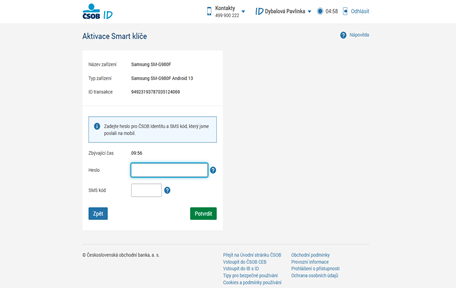
Enter the password for your ČSOB Identity and the SMS code that will be sent to your mobile phone
-
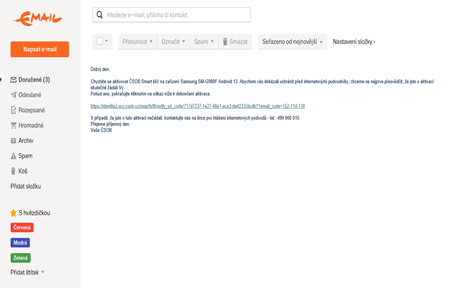
Click the activation link in the email.
-
And it's done.
FAQ
I lost my phone where I had the Smart Key. What should I do?
Call Contacts - hotlines and branches as soon as possible and we will block your banking.
Activation through a sales representative of ČSOB Stavební spořitelna
- Download and install the ČSOB Smart Key app from your app store (App Store, Google Play, Huawei AppGallery).
- You will sign an agreement with a ČSOB Stavební spořitelna sales representative regarding ČSOB Identity, including the issuance of an activation code for the Smart Key.
- We will send a code to the security phone number you provided, which you will then give to the sales representative.
- The activation code for the Smart Key will then be displayed on the sales representative's device.
- Open the Smart Key app on your mobile phone, click on "Activate" and "Scan activation code".
- Use the camera on your mobile phone to load the activation code into the Smart Key app.
- Select the five-digit PIN in the Smart Key. The app will immediately offer you biometric confirmation.
Activation at a branch or Czech Post
- Download and install the ČSOB Smart Key app from your app store (App Store, Google Play, Huawei AppGallery).
- Visit the nearest ČSOB branch or Czech Post and request an activation code for the Smart Key. Our colleagues will print it on paper for you.
- Open the Smart Key app on your mobile phone, click "Activate" and "Load activation code".
- Use the camera on your mobile phone to load the activation code into the Smart Key app.
- Select the five-digit PIN in the Smart Key. The app will immediately offer you biometric confirmation.
I don't remember the confirmation PIN in the Smart Key. Where can I find it?
You won't find your Smart Key PIN anywhere, but if you don't remember, you can deactivate the app and then reactivate it. See the video tutorial on activating your Smart Key above.
Log in and confirm your request off-line
It's no problem to confirm payments in Smart Key online banking, even if you don't have a signal on your mobile phone or you've run out of data.
TIP: Use this method if you don't have internet access. Off-line QR code confirmation cannot be used to confirm card payments online, you need an ePIN for that.
- Log in to Online Banking with your username and password.
- Click on "QR code". If you are logging into Online Banking from your mobile phone, save the code to the gallery or copy it.
- Launch the Smart Key app, click on the QR code icon in the bottom right corner and take a picture of the QR code. If you are logging into Online Banking from your mobile phone, retrieve the QR code from the gallery.
- Review the request and select "Confirm".
- Confirm with biometrics or PIN.
Can I use the Smart Key on multiple mobile devices?
Yes, you can use it on as many mobile and tablet devices as you want.
I can't login or confirm payments with the Smart Key in Smart. What do I do?
Open the CSOB Smart app, click on the blue letter i in the top right corner and then select "Restore default settings" and "Reset". If that doesn't work, deactivate your Smart key app and then reactivate. Video instructions can be found above.
What should I do if I don't get push notifications?
In the Smart Key app, click "More" in the bottom right. In the menu, select "Preferences" and then "Manage notifications". Enable notifications and confirmation requests here.
What you need for installation
- Mobile phone or tablet with Android 7.0 and above or iOS 15.0 and above
- Apple Watch with watchOS 9 and higher
- Data connection to download and activate the app
- CSOB Smart Key also works on newer Huawei and Honor mobile phones. Download it from the official Huawei AppGallery app store.