
Smart


ČSOB Smart

Download and Install ČSOB Smart and ČSOB Smart Key
-
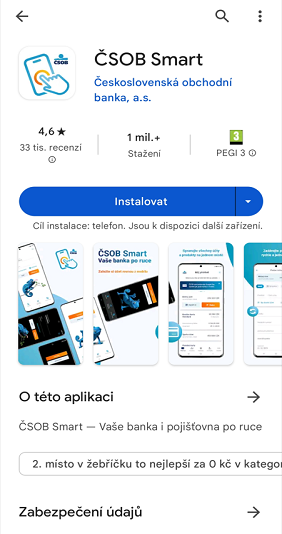
Open Play Store, App Store or Huawey App Gallery on your phone, search for ČSOB Smart and tap on
Instalovat/Získat.
-
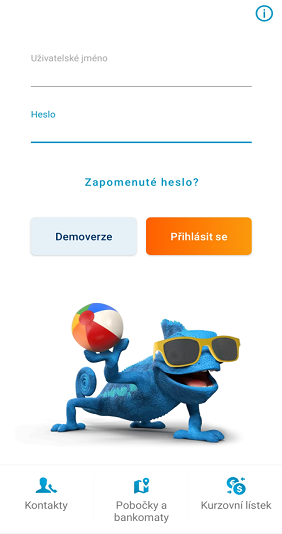
Log in to ČSOB Smart with your username and password that you set up yourself (see how to set
your username and password).
-
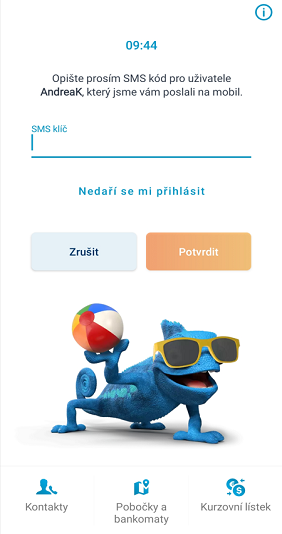
You will receive an SMS code on your phone – type it into the app and you’re there.
-
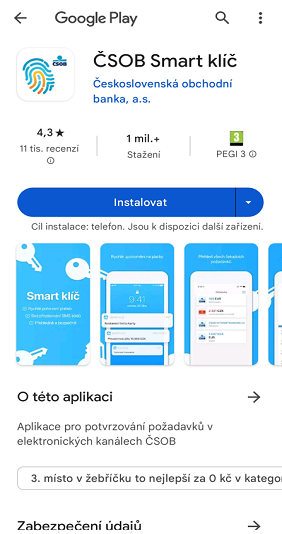
To authorise transactions in CSOB Smart, you need the CSOB Smart Key
app, which you can download from the Play Store, App Store or Huawei App Gallery and go to
Install/Get and complete the activation using
the instructions in the Smart Key section, online via selfie or via ATM.
How to reach our operator in priority?
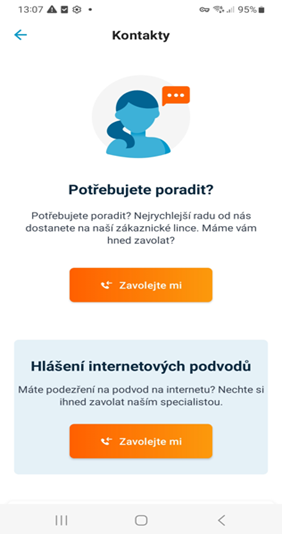
If you need advice or a quick solution to an internet fraud, click on the orange "Call me" button in Smart and we will call you right back. It is quicker than a standard call to a helpline, where you wait in a queue for an operator who yet has to verify your identity.
-
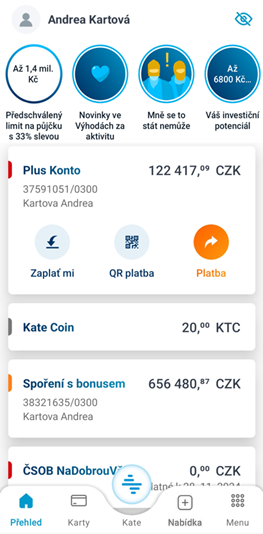
Click "Menu" on the dashboard.
-
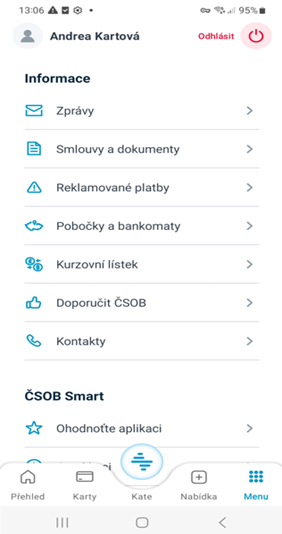
Scroll down to "Informace" and select "Kontakty".
-
For the selected line, click on "Call me“", check the phone number and confirm.
How to set up or cancel biometric login
-
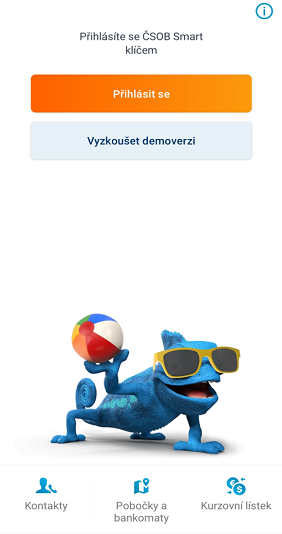
Log in to ČSOB Smart.
-
On the home page, click on "Menu".
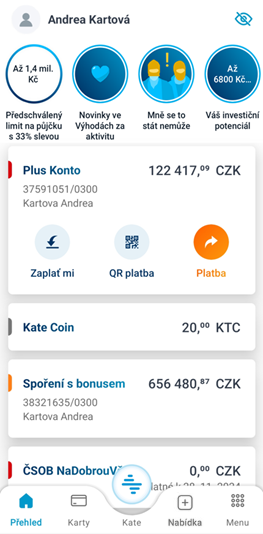
-
In "CSOB Smart" select "Manage security".
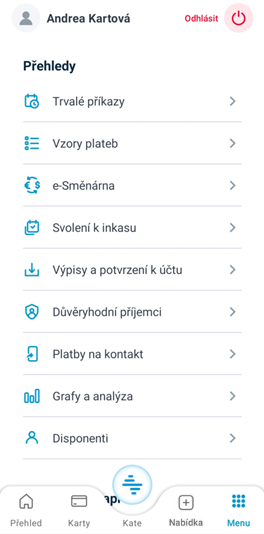
-
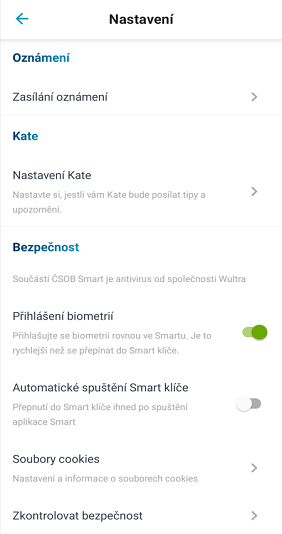
Under security, click on "Biometrics/Face ID Login".
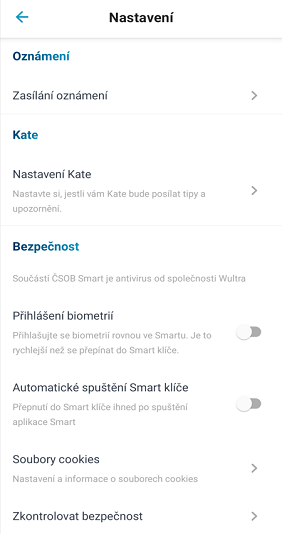
-
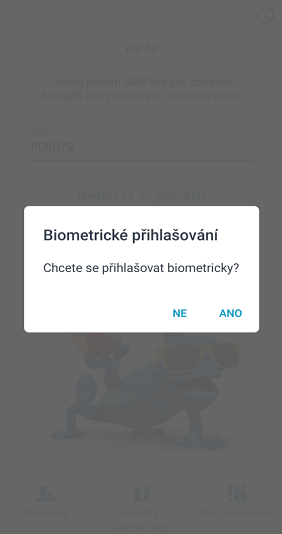
In the pop-up window, select "Yes".
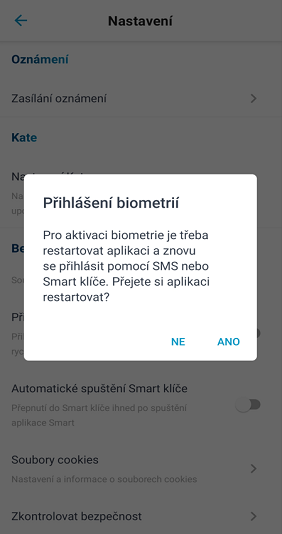
-
In the next pop-up window click on "Yes" again.
-
If you are not comfortable with biometrics, you can turn this functionality off using the same
procedure.
How to register Pay a Contact
-
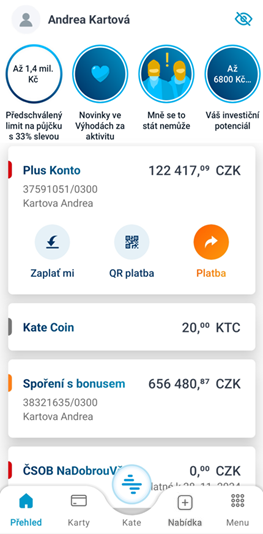
Click "Menu" on the dashboard.
-
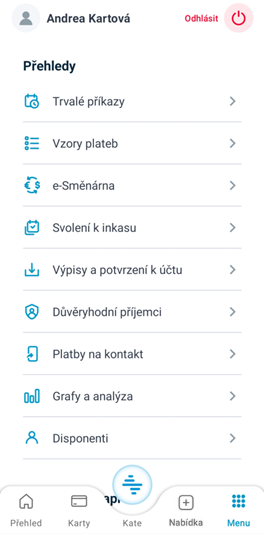
In the Overviews section click "Pay a Contact".
-
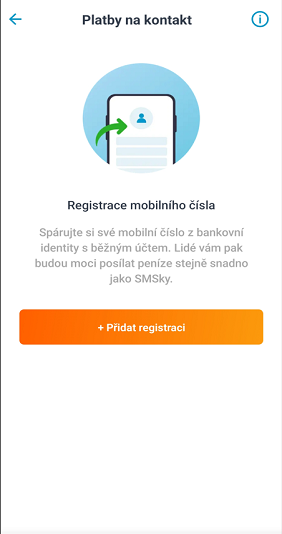
Click the "Add registration" button.
-
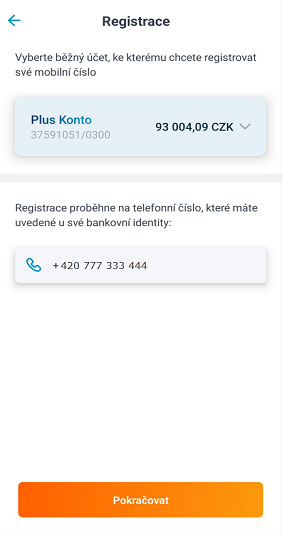
Check the phone number (pre-filled automatically from your ČSOB Identity) and hit
"Continue".
-
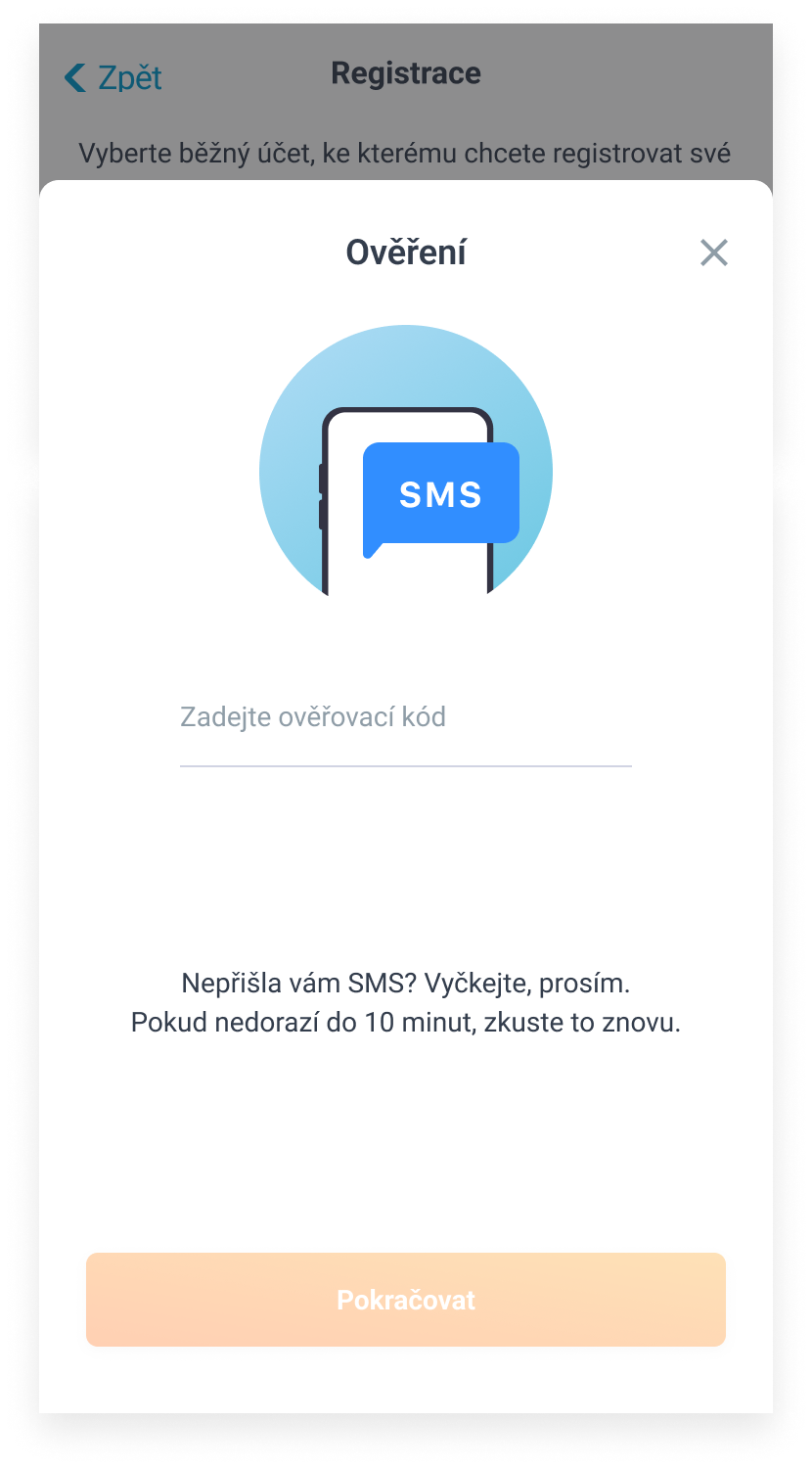
Re-write the code from the SMS and tap "Continue".
-
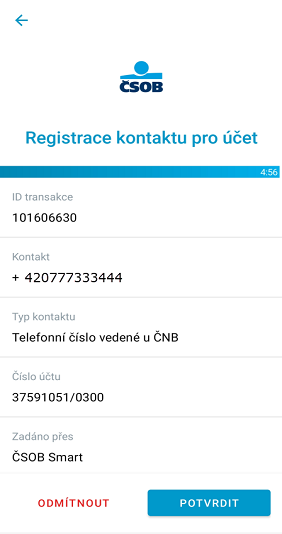
Confirm your request using Smart Key.
-
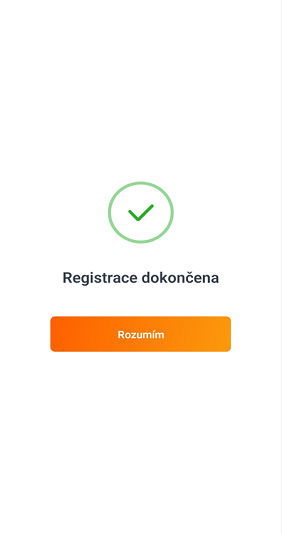
Done, your registration is now complete.
How to send Pay a Contact
-
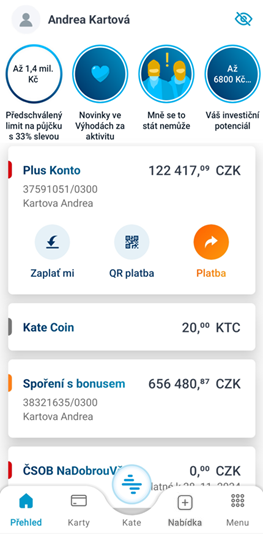
Click the orange "Payment" button on the dashboard.
-
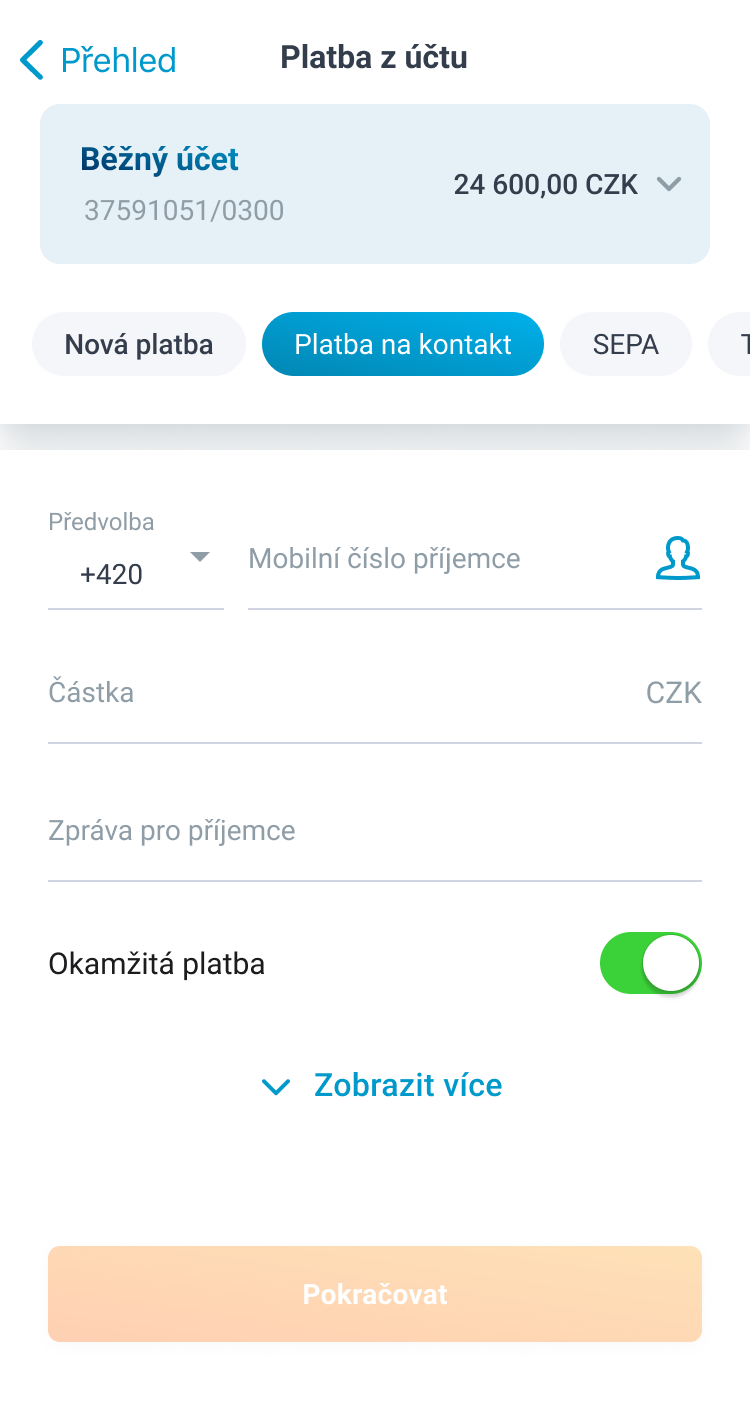
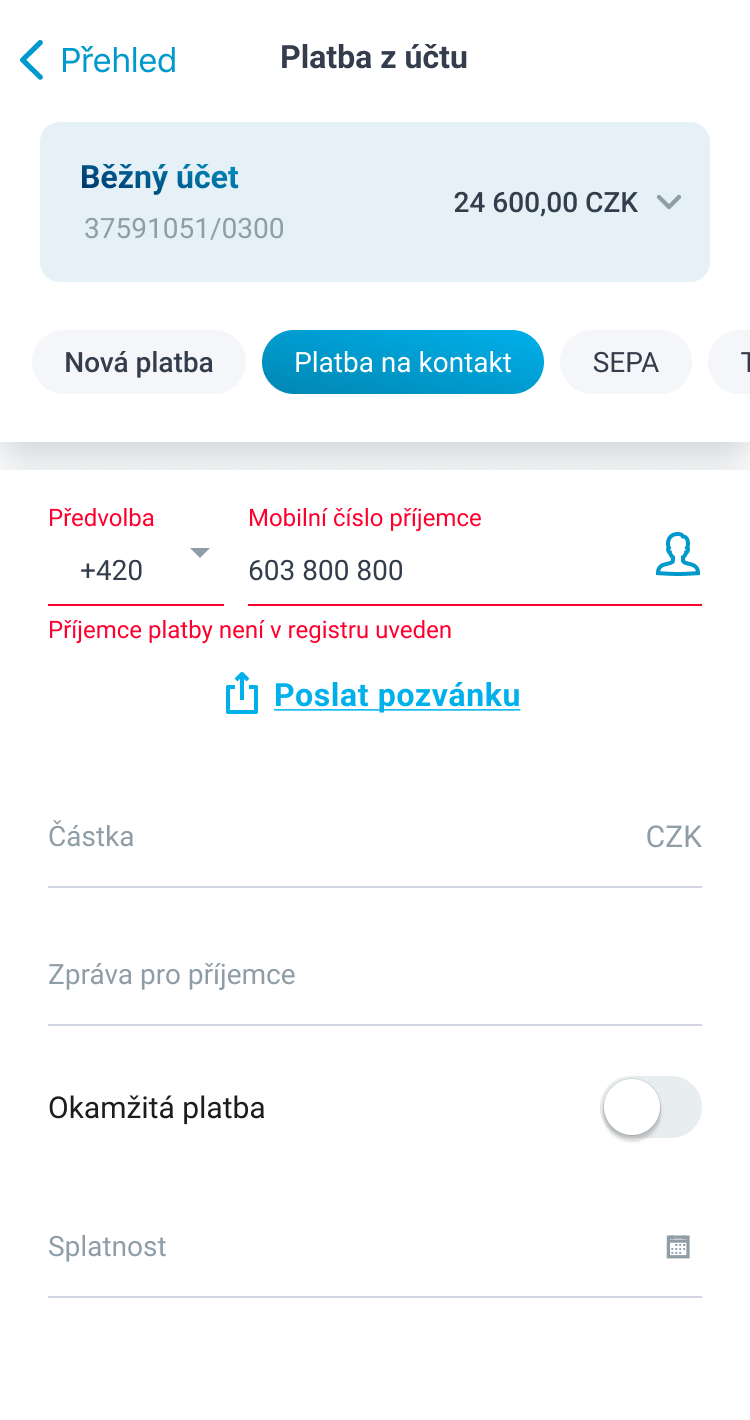
Choose "Pay a Contact" tab.
-
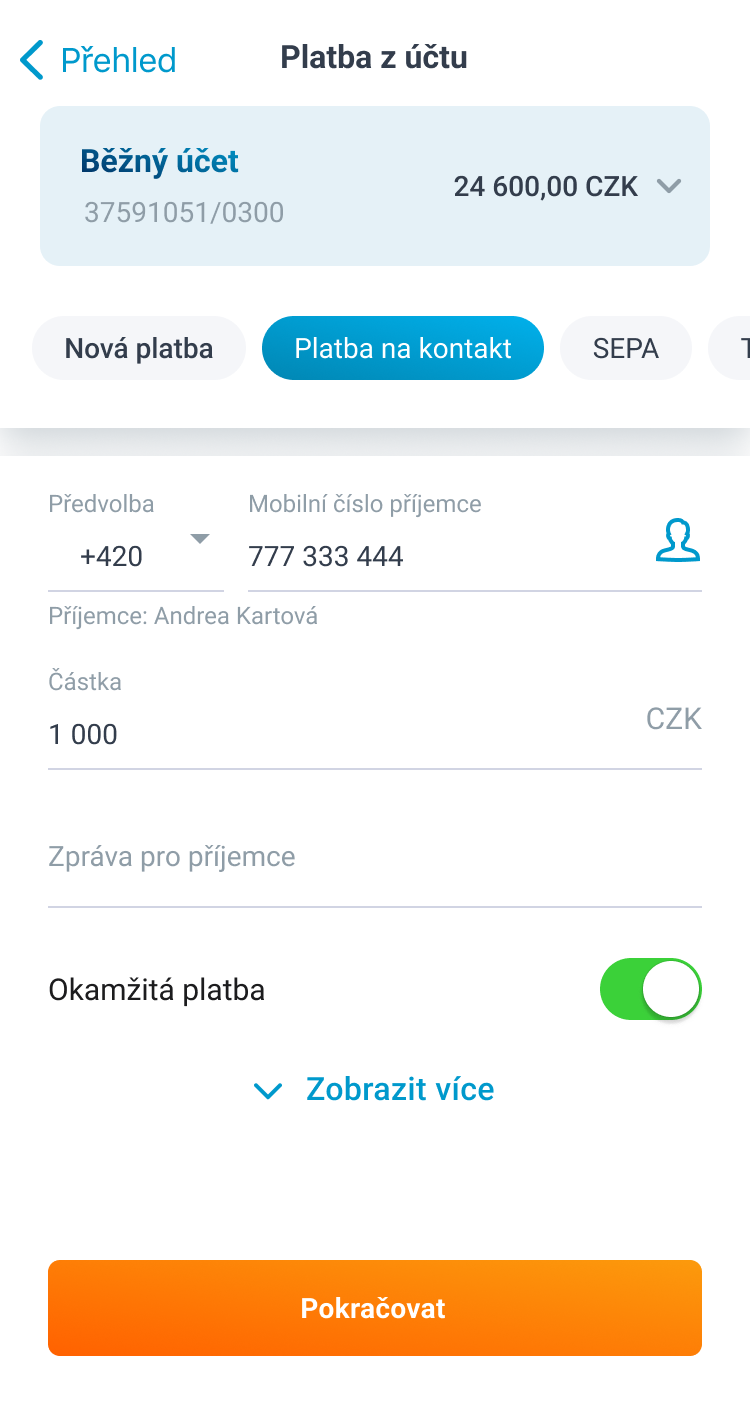
Enter the payee's phone number or choose a contact from your contact list. Fill in the
payment details and hit "Continue".
-
You can recommend Pay a Contact to an unregistered phone number user, (the "Send invitation"
button).
-
That's it! Your payment has just been sent.
How to add an authorised user to an account
-
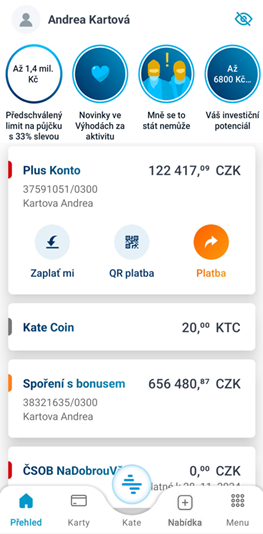
On the home page of Smart, click on the account to which you want to add the authorised user.
-
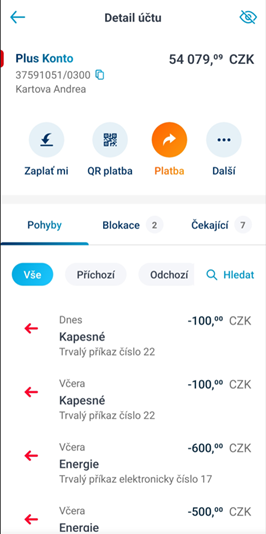
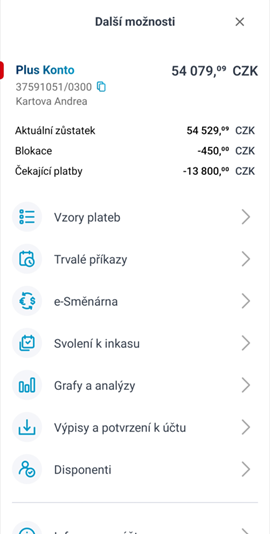
In the account details, select More.
-
Now select Authorised users.
-
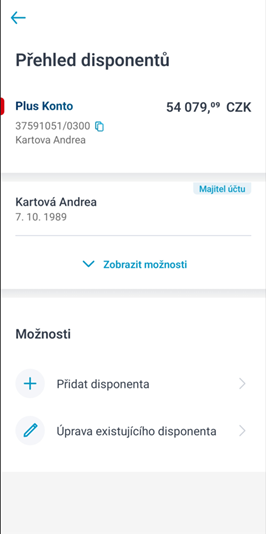
Continue by selecting Add authorised user.
-
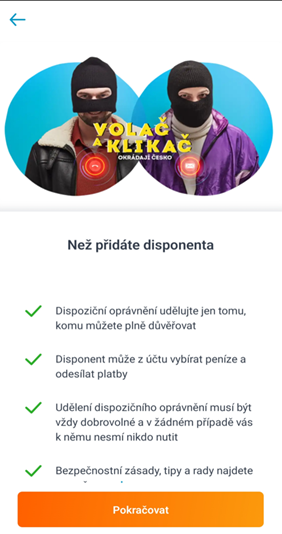
Read what adding an authorised user entails and click Continue.
-
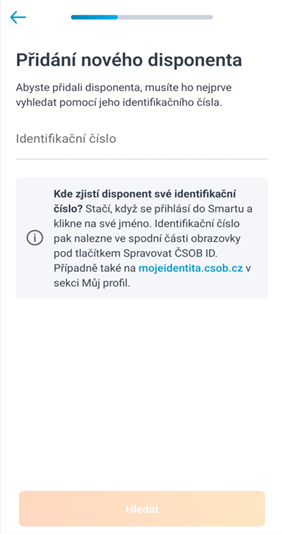
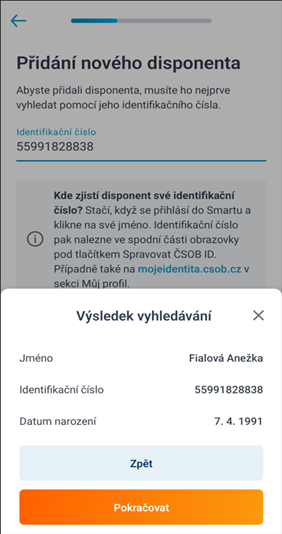
Fill in the Identification number of the new authorised user.
-
Check the authorised user details and hit Continue.
-
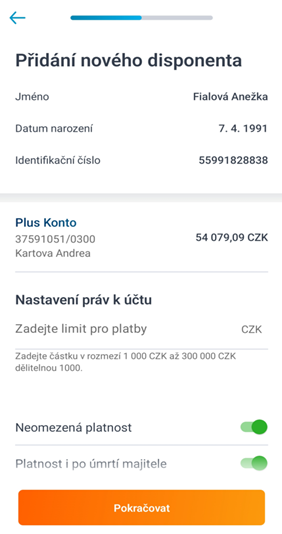
Set account permissions (limits, validity) and choose Continue.
-
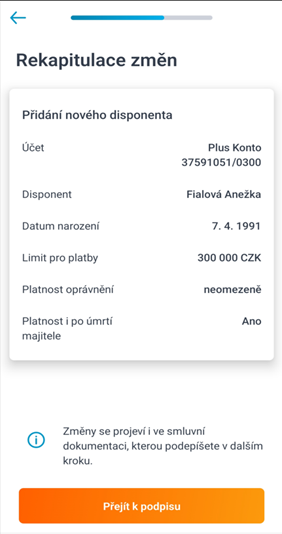
In the Changes summary, check that everything is okay.
-
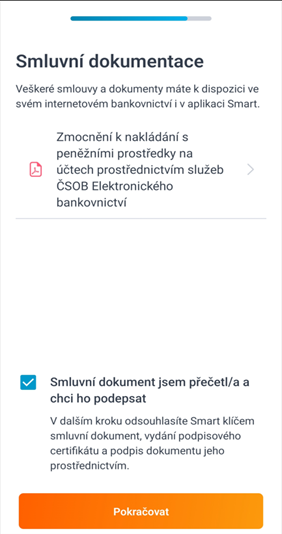
Agree on the contractual documentation and sign the documents with Smart Key.
-
Done. Now just wait for the approval of your request.

Text instructions
Current and available balance, blocks and pending payments
- Log in to the app and click on a specific account.
-
Click on the "Next" icon with the three dots. A summary and account balances will expand.
Current balance - the money you have in your account, not including pending payments and overdrafts.
Blocked - an unprocessed payment, such as a store card.
Available balance - the money you actually have in your account, including overdrafts. To calculate your available balance: Current balance - Blocking + Available overdraft balance.
Pending payments - money you are sending but has not yet cleared. You can only cancel a pending payment with a future due date in Online Banking. - You can find a detailed account overview under the "More" button in the "Account Information" section. Here you will find details including the date of creation or the type of account.
Search for payments
- Log in to the app and click on the account you want to search for a payment. . On the right you will find the "Search" option, select it.
- Specify the parameters of the payment: if it was Incoming, Outgoing, in what approximate Amount and Time period. If the basic parameters are not enough, click on "Advanced Search".
- Select the desired time period and confirm.
- Confirm that you want to Filter.
- We'll list all the payments that match your input, going back up to 5 years. Didn't find what you were looking for? Specify the parameters in the filter and try again.
Entering and editing a permanent order
- Log in to the app and click on "Payment". In the payment type, select "Permanent payment". Name who you are paying, fill in the account number, the amount, when you want to send the money from and how often. Check the details and confirm the payment with the Smart Key.
- To change the standing order, click on the account name. Then select the "Next” icon with the three dots and select "Standing orders". Select which permanent payment you want to modify. Then just click on "Edit" and enter the newly required information and "Confirm" the change of settings and that's it.
QR code payment
- Log in to the app and click on "QR Payment".
- Allow the app to take photos and record videos.
- Point your camera at the QR code or select the file from your mobile phone ("Select from gallery" or "Upload PDF" document).
- The payment details are loaded into the form, which you can further customise (for example, add a message for the recipient or adjust the amount).
- Check the details and confirm with the Smart key. That's it. You can pay by QR code.
Payment pattern
- Select the "Payment" option for your account.
- Fill in the necessary details such as account number, amount and more. Then click "Continue".
- In the summary, check the details you have entered and click "Confirm" to be sure.
- Then select "Save as pattern".
- Fill in the "Pattern Name" or edit the amount and click "Create Pattern".
- In the summary, double-check the details you entered from the original payment and click "Create Pattern" to be sure you are done.
FAQ
What should I do if the CSOB Smart app does not work?
- Make sure your mobile phone is connected to the internet.
- Make sure you have the latest version of the app. Find CSOB Smart in the Play Store or App Store. If the version is not up-to-date, you will see an Update button. Click it to update the app.
- Close the background apps on your phone and try logging in again.
- Restore the app to its default settings. Open the CSOB Smart app. On the login screen, select the "i" icon on the top right and select "Restore Default Settings". Press "Restore".
- If restoring the default settings does not help, just uninstall the CSOB Smart app and reinstall it from your app store. After reinstalling, restart your phone.
- If none of the previous steps worked, please call the contacts here: Contacts - hotlines and branches.
What should I do if I lose the phone I have Smart on?
Please call as soon as possible according to: Contacts - hotlines and branches and we will block the app on your lost phone. Once you have a new phone, install and reactivate the app on it. You can find the video tutorial in the section "Smart key" - "Restoring the Smart key app".
What should I do if I block my access to Smart?
If you block biometric login, you can still log in to the app with your PIN.
If your Smart key is blocked because you have entered the wrong PIN several times, you have no choice but to reactivate it. You can find video tutorials on how to activate it in the "Smart key" section.
If you have blocked your PIN even though you know it, please call: Contacts - hotlines and branches.
I see the user Jan Karta in my Smart. What do I do?
You are logged into the demo version of the app, which exists so you can try out CSOB Smart for yourself. You can log out of the demo by clicking on "Menu" and "Log out".
I can't see my balances in Smart
If you see four dots in Smarts instead of your account balance, press the blue eye icon in the top right corner of the app. You can now see your balances.
When do I need to confirm Smart Key payments?
All payments are confirmed with the Smart Key, with the following exceptions:
- Payments to accounts that you add yourself to the list of trusted accounts
- Payments up to CZK 500 (max. CZK 2,500)
- Payments between your own accounts
Paying with Simplified Payment Confirmation is as safe, simple and fast as possible. However, it is not mandatory - you can turn simplified payment confirmation off or on at any time in CSOB Identity by clicking on the "Simplified payment confirmation" tile.
What are the limits for sending money in Smart?
The limit for payments is daily and can be found in the CSOB Smart app:
- Log in to the app.
- Click on "Menu" in the bottom right.
- Scroll all the way down and select "Limit settings".
- Here you will see your current limit and can adjust it as needed.
Important information on limits
- If you make a payment via ČSOB Smart, your limit for Internet Banking will also be reduced.
Exceptions to limits
Some transactions do not count towards the daily limit, for example:
- Transfer between own accounts
- Credit card payment
- Transfer from a savings account to a checking account
Where can I find my username in Smart?
Once you've logged into the app, click on your name in the top left corner, scroll down. In the "CSOB Identity" section you will find "CSOB ID/User Name".
Where can I find statements or receipts in Smart?
After logging into the app, select the account and the payment you want to make. In the payment details, you will find the "Share payment confirmation" button. Other statements and receipts can be found under the account in the "Other" tab - "Account statements and receipts".
You can also find statements after logging into Online Banking under the main menu "Reports" - "Statements".

Supported devices:
- Android version 7 and higher
- iOS version 15 and higher
- Starting at the end of May, the minimum required version will be iOS/iPadOS 16.4 or higher and Android 9 or higher
CSOB Smart is not supported on low-end phones and tablets with specially modified Android (Go edition) and does not work on newer Huawei and Honor phones. For security reasons, we do not recommend installing the app from unofficial sources (APKPure, Aptoide, Google Space).