Business Connector


Business Connector

Install the Business Connector app
Business Connector is an application that enables automatic transfer of statements, notifications, and payment orders between your environment and the bank via an API connection. If your software does not support API connectivity, the Business Connector application provided by the bank ensures the transfer of files from the bank.
-
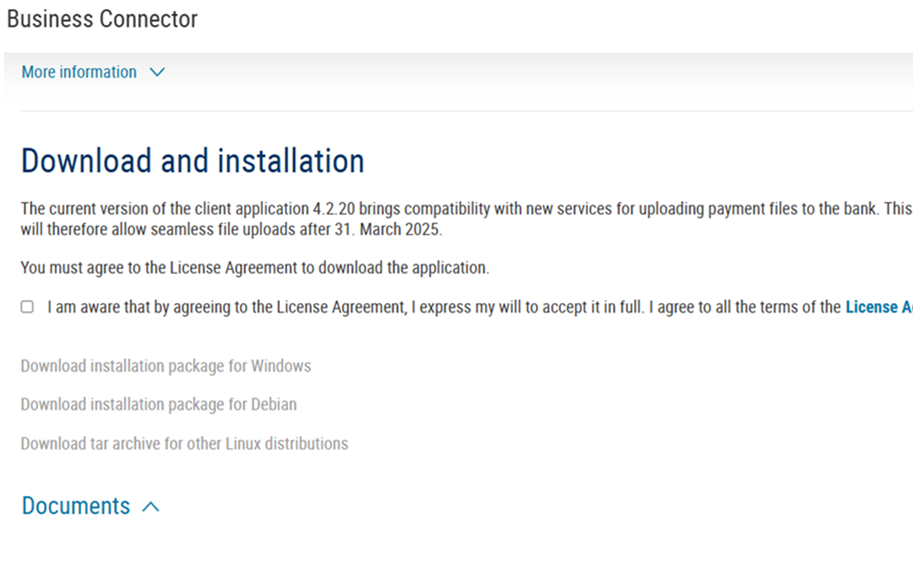
The application is available for download at www.csob.cz/businessconnector. Before downloading it, you must first accept the License Agreement.
-
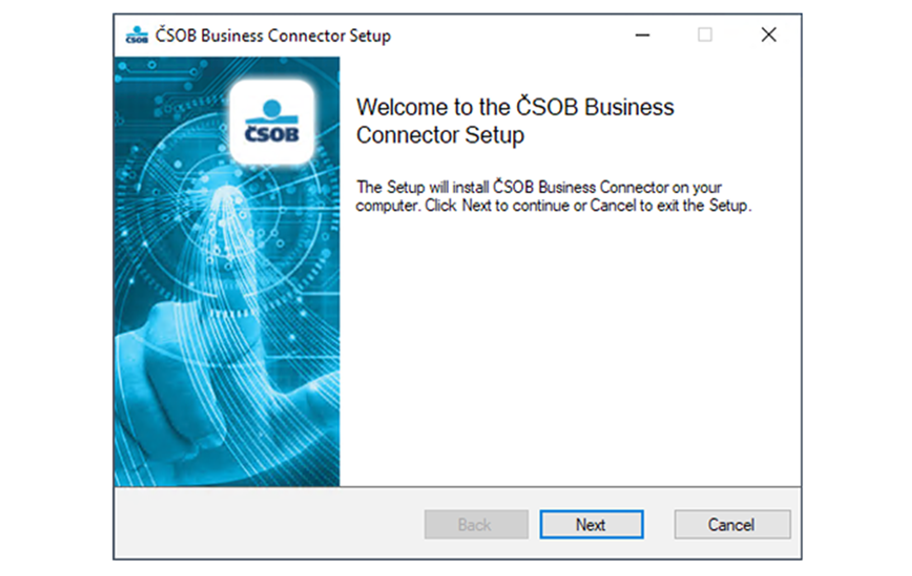
Run the Windows installation package and follow the instructions in the installation wizard.
-
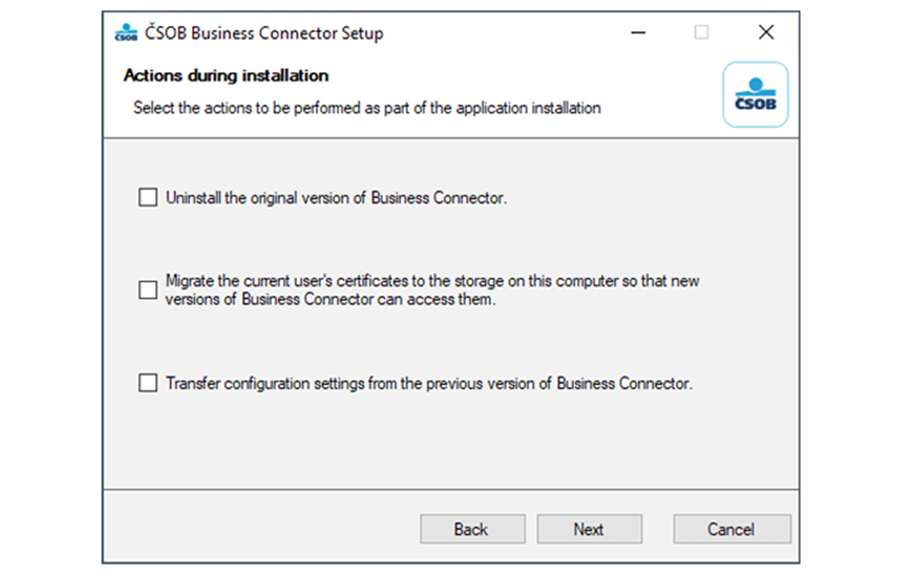
During the installation, you can choose to uninstall the original version of the Business Connetor application and transfer its certificates. This applies to Business Connedctor verion 3.x. If you have not used a previous 3.X version of the application, skip this step.
-
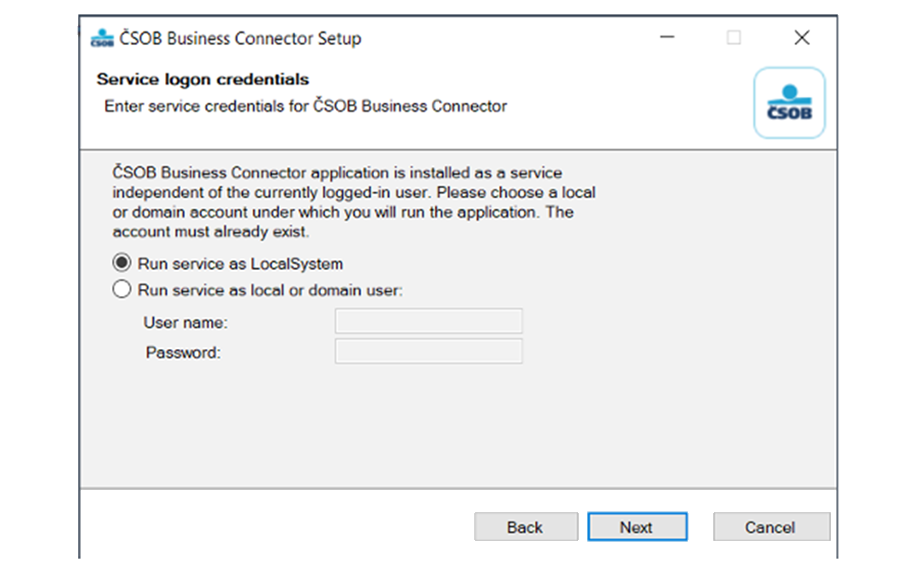
In the next step, select whether the service should run under the System account or a User account. A User account must be selected if you need to save data to, or retrieve data from, network storage. If you work only with data stored on a local disk, the System account can be used.
-
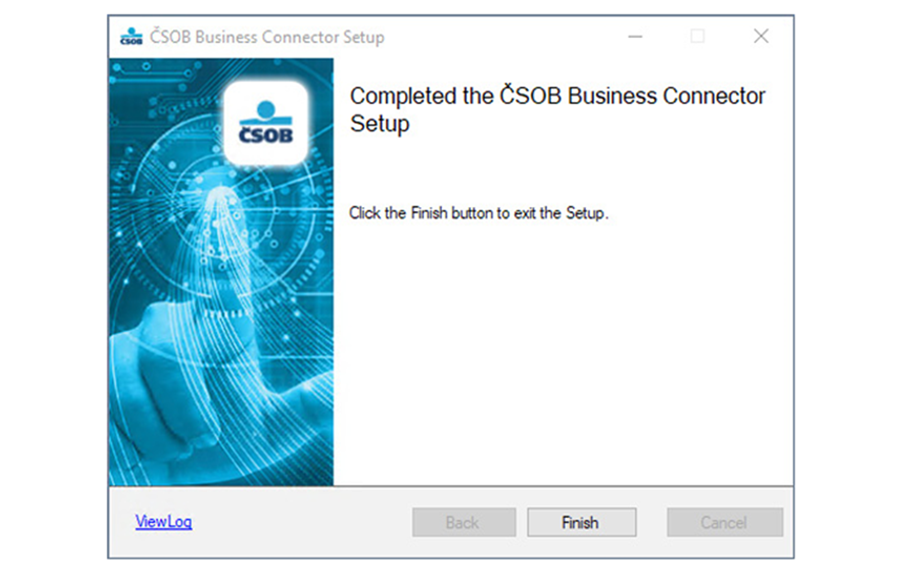
Once the installation is complete, close the installation wizard by clicking Finish.
Set up the Business Connector app
This is the setting of the Business Connector application. You can also use your own accounting program to connect to the API for the purpose of automatic transfer of statements, advice and payment orders, if it supports the API connection.
-
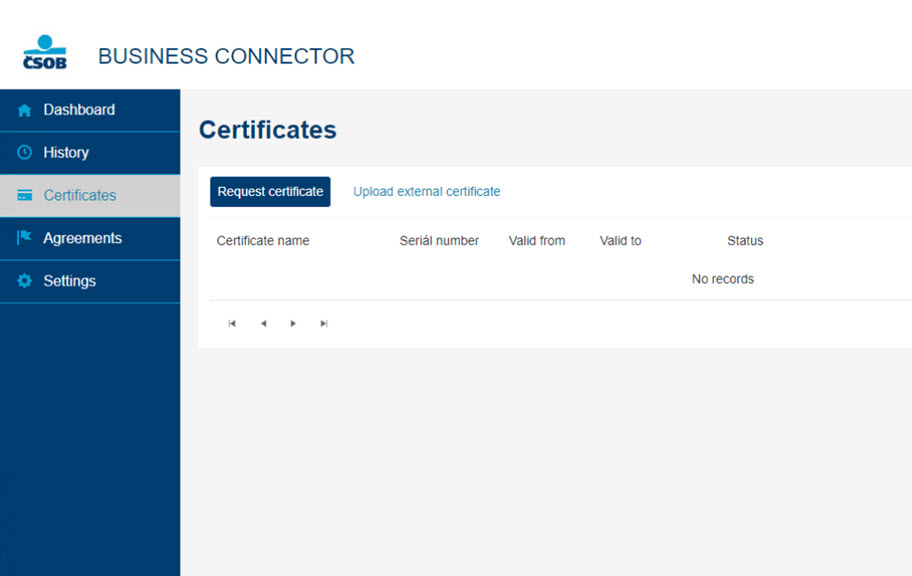
To get the application up and running, you need to create a communication certificate. Run the installed application and use the Request Certificate button to create a certificate request in the Certificates option.
-
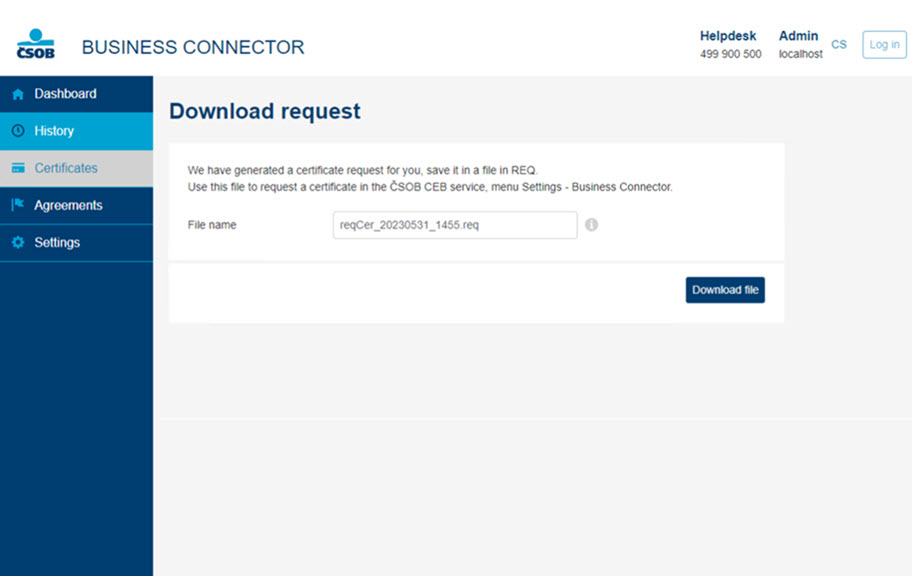
The following is the download of the certificate request to the computer disk. You can change the file name displayed. Use the Download file button to save the file to the computer disk.
-
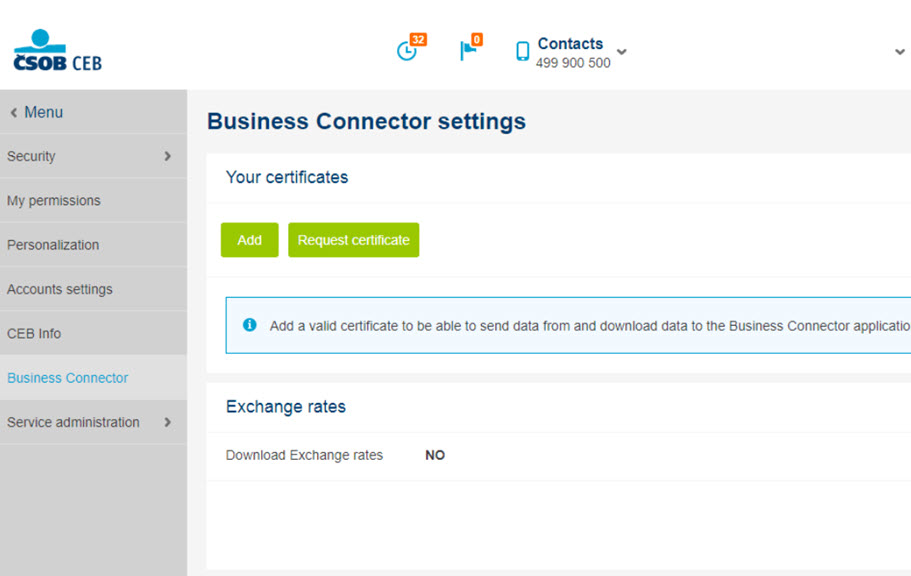
Now you need to upload the application file to the CEB portal of the service. After logging in to the portal, choose Settings from the CEB menu, and then choose Business Connector. In the Certificates section, choose Request certificate.
-
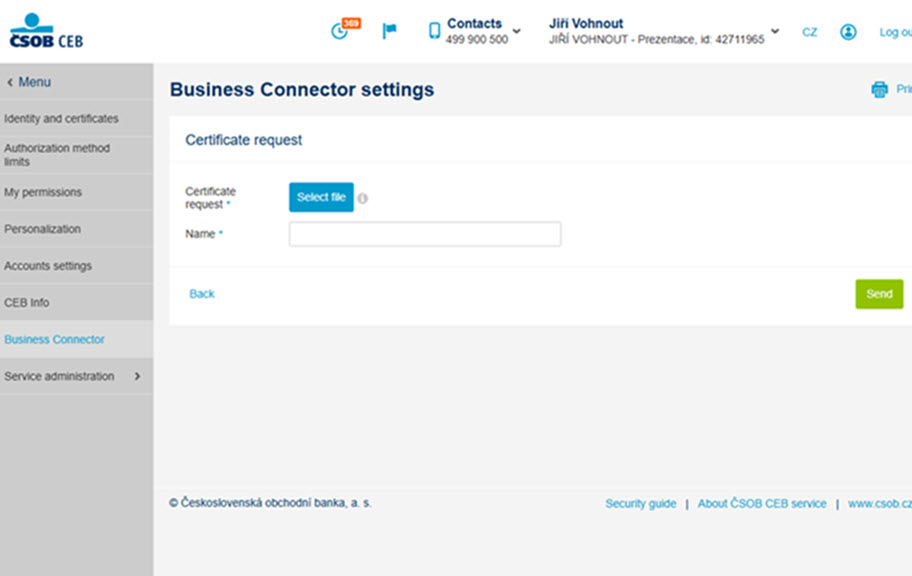
In the following dialog, select the certificate request file that you have saved to your disk. You can fill in the name for the certificate, which will be displayed in the list of certificates. Confirm the creation of the certificate by clicking the Send button.
-
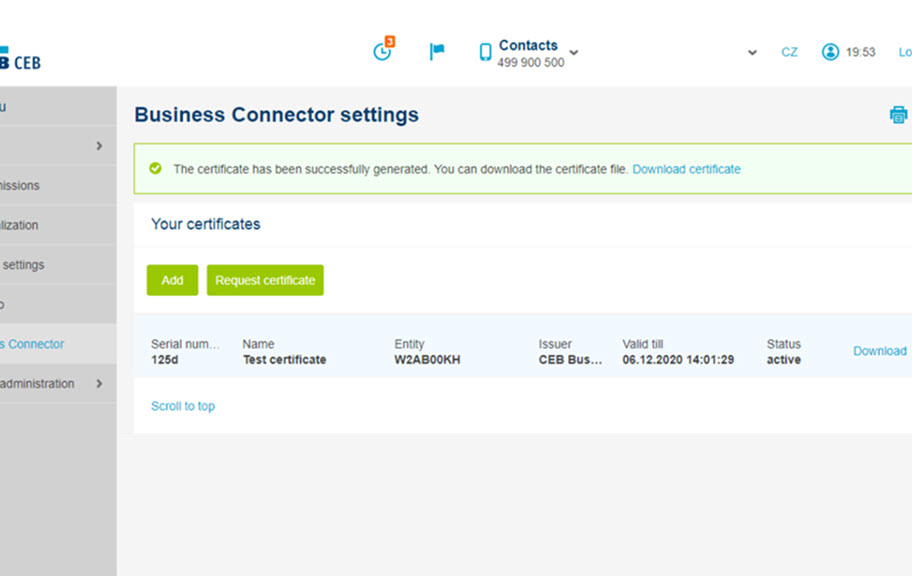
The successful generation of the certificate is then confirmed. Use the Download Certificate option to save the certificate to your computer so that you can load the finished certificate into the Business Connector application.
-
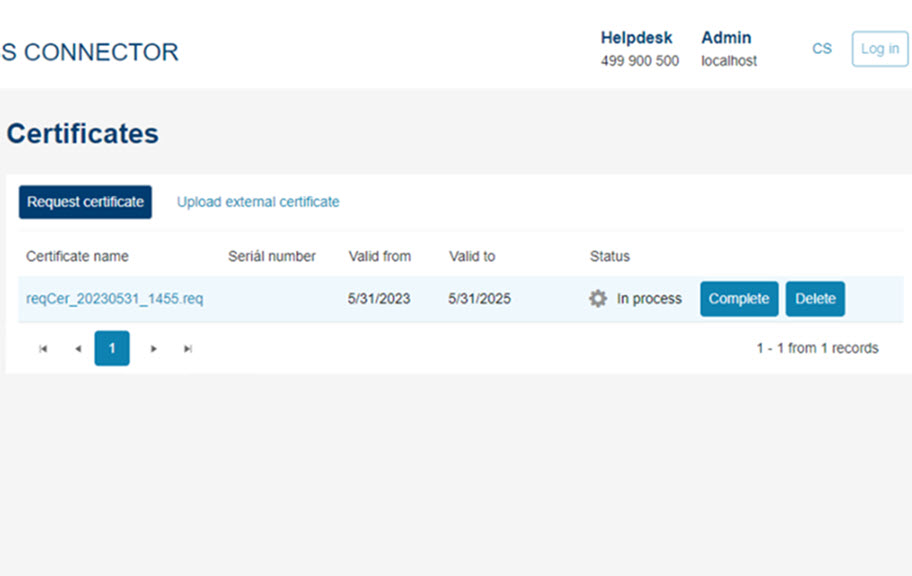
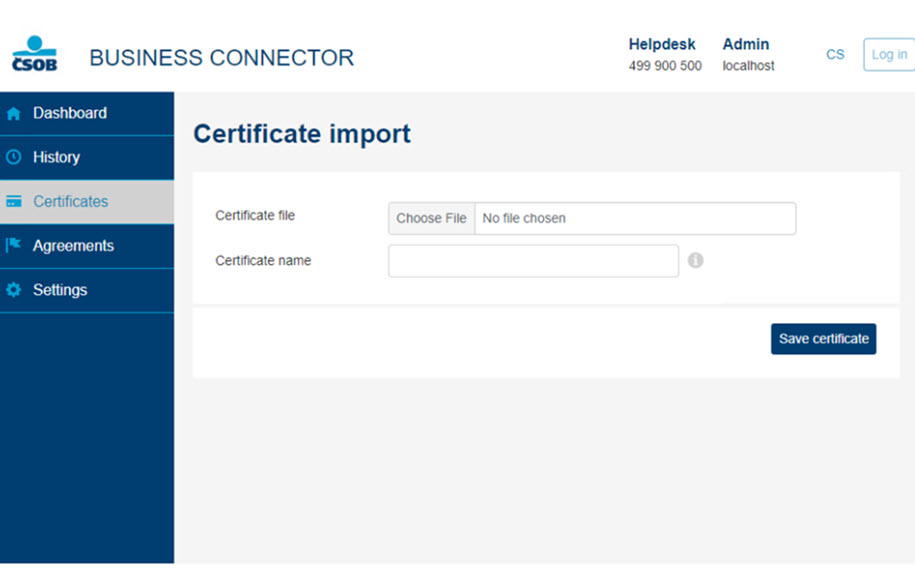
In the Business Connector app, on the Certificates screen, choose Finish for the pending certificate request.
-
In the following dialog, you will enter the downloaded finished certificate from the CEB portal of the service. Do not forget to confirm the settings by clicking the Save certificate button.
-
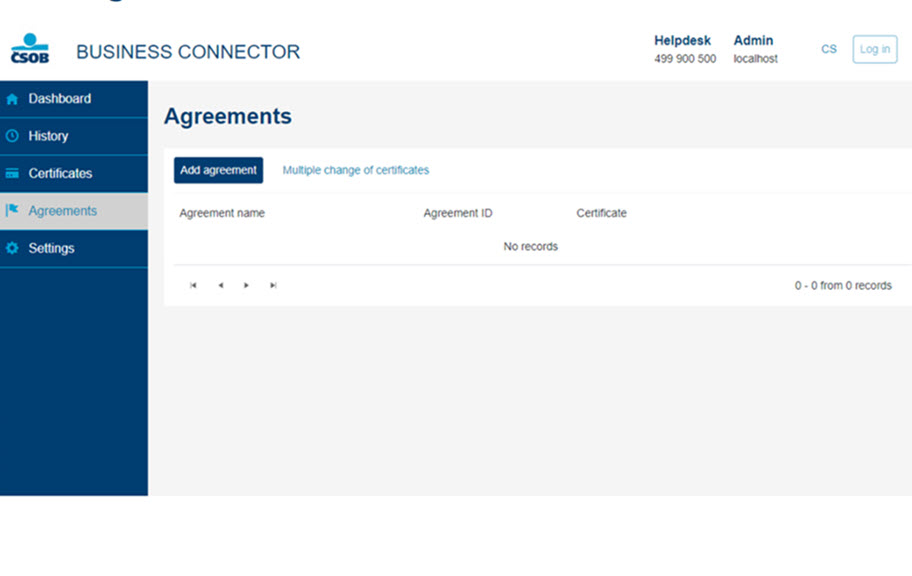
After successfully uploading the communication certificate, proceed to the Contracts option. Use the Add Agreement button to enter the contract details and fill in the CEB Service Agreement Identification Number in the Contract ID field. You can find it in the CEB Service Portal, where it is listed in the header.
You can name the contract as you wish and it is necessary to select a specific communication certificate for it. Do not forget to confirm the parameters using the Save button.
-
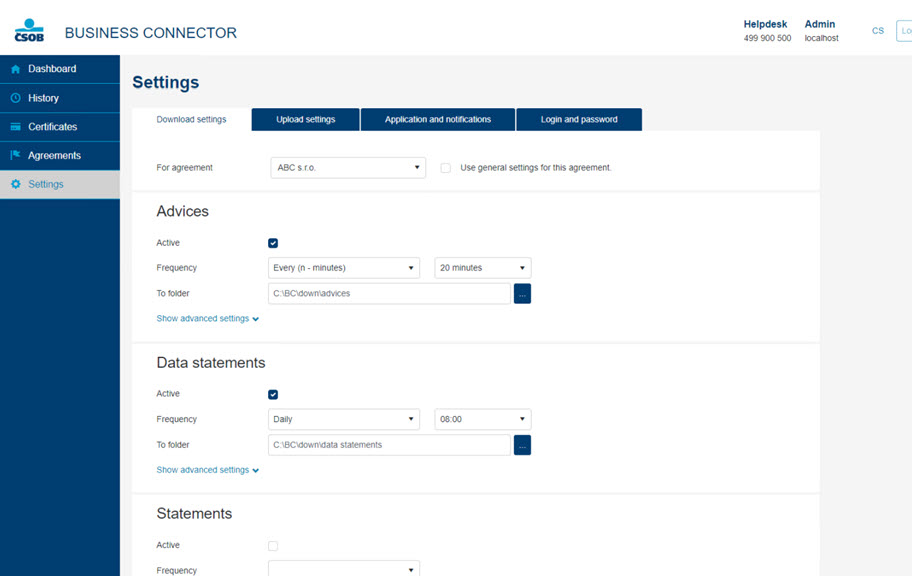
To set up data download from the bank, go to Settings, select the contract for which you want to make the settings and select the type of data you want to download via the Business Connector. For each data type, select the frequency of data download and the destination folder for storage. By checking the Active box, you will ensure that the download prescription is applied.
-
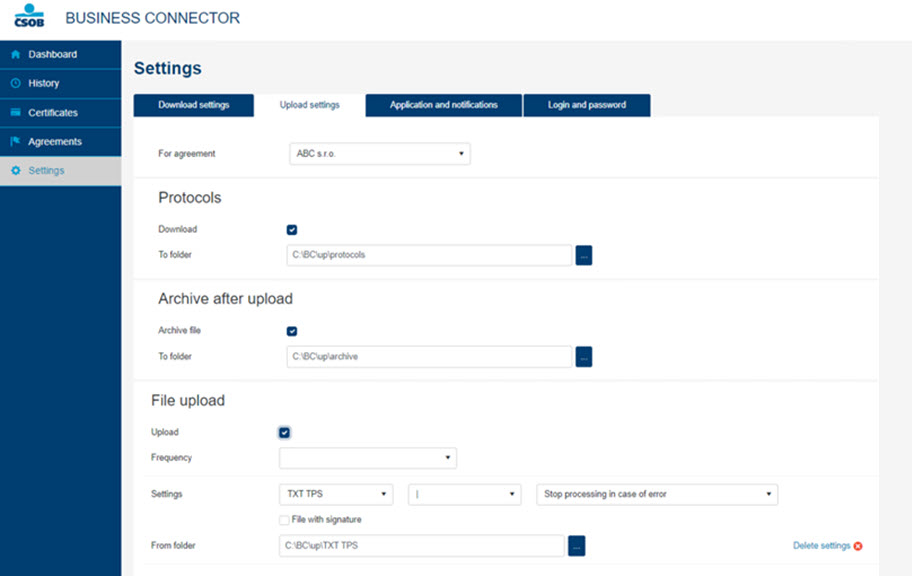
If you require automated sending of payment batches to the bank, go to the sending settings. First, select which agreements the settings will apply to.
In the Import Logs section, you can set up the download of import reports that contain the import result. In the Archive section, you can set a folder to store files after import, and in the File Uploads section, select the file format, separator, and import mode if an error occurs in the file.
If it is a file that has already been electronically signed, check this option. When selecting a folder on network storage, we do not recommend selecting the "immediately" frequency.
-
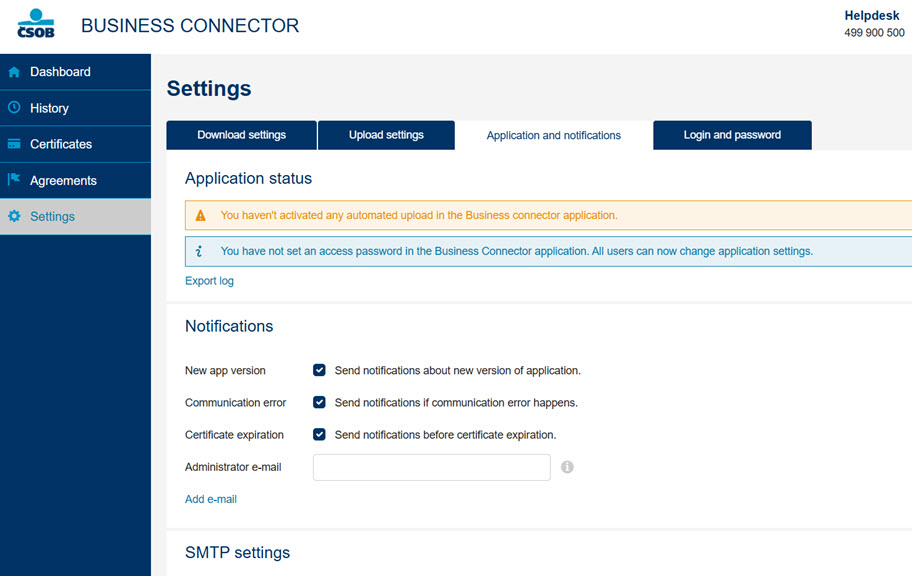
On the Applications and notifications tab, you can check the status of the application and, if necessary, expose the log. You also have the option to set up sending email notifications in case of notification of a new version of the application, communication errors or certificate expiration.
In the Administrator's E-mail field, set the recipient where the notification should be sent. Set the SMTP server address, SMTP server username and password. As part of the advanced settings, specify the SMTP port. And if you use SSL, check the Enable SSL checkbox. Check the default login details only if the SMTP server uses the user data of the account under which the Business Connector service runs.
Set up Business Connector in the CEB service portal
This step enables access to the API, either through the Business Connector application supplied by the bank, or through a third-party application, such as accounting program, that supports direct communication with the API. This step describes only the API access configuration. Instructions for obtaining a communication certificate and for installing and configuring the communication application can be found in the corresponding chapters.
-
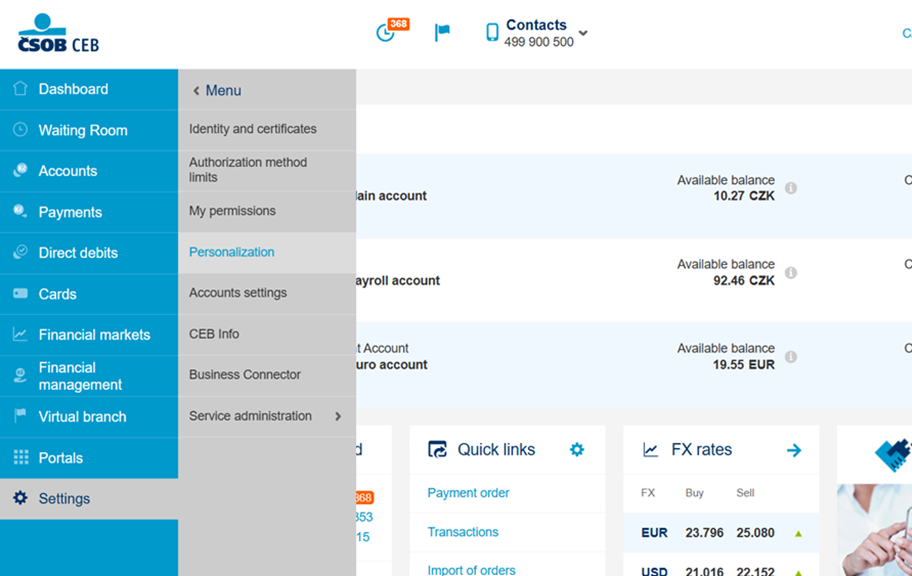
Log in to the CEB portal and go to Settings and select Business Connector.
-
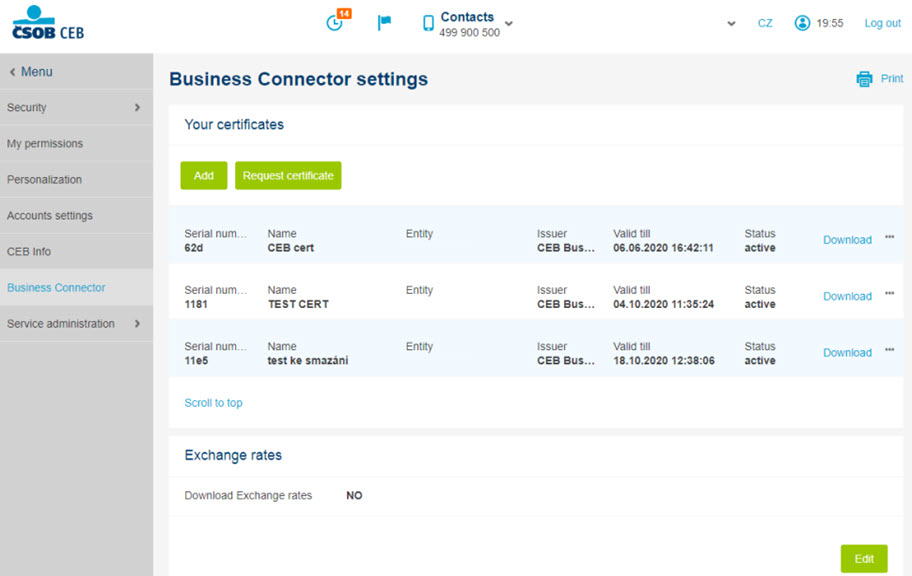
In the Certificates section, ensure that a valid certificate is registered. In the Exchange Rate Ticket section, you can configure the delivery of exchange rates.
-
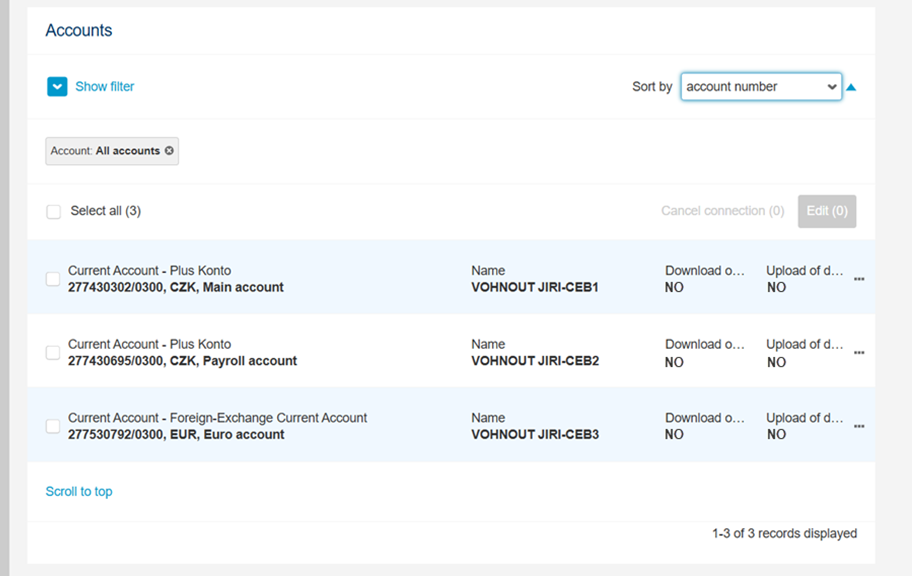
In the Accounts section, you can select one or more accounts and configure their API access settings.
-
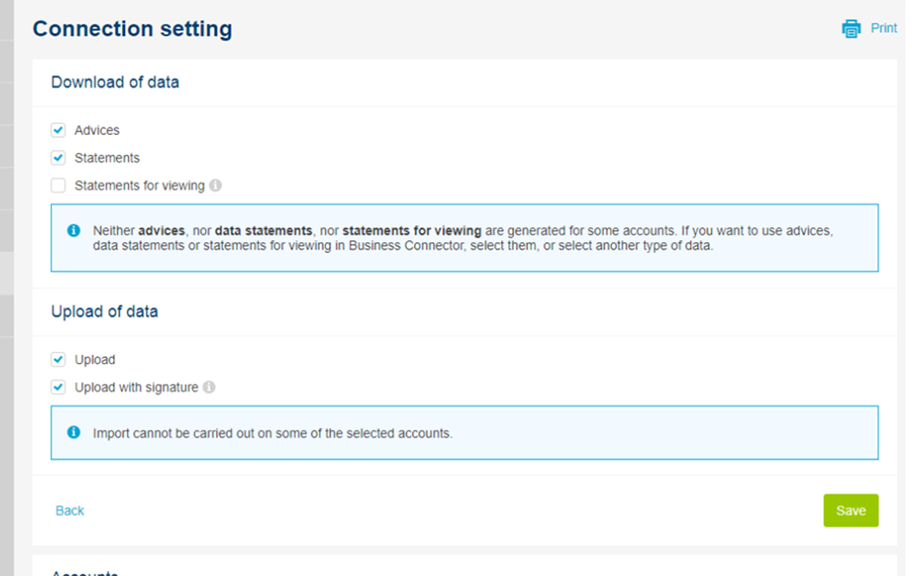
On the following screen, you can specify which type of data can be downloaded for the selected accounts and configure permission for sending payment batches to the bank.